
Build Views and Explore Data with Tableau Agent
As of October 14, 2025, Data Cloud has been rebranded to Data 360. During this transition, you may see references to Data Cloud in our application and documentation. While the name is new, the functionality and content remains unchanged.
Supported in Tableau Desktop version 2025.1 and later.
Tableau Agent is a generative AI feature available in Tableau Desktop, Tableau Cloud, and Tableau Server (version 2025.3 and later) that can help you uncover insights with the help of a conversational assistant.
With Tableau Agent, you can:
-
Explore your data
-
Create visualizations
-
Create and explain calculations
-
Configure Tableau Agent in Dashboards settings.
Connect to a workbook or data source and use natural language to perform visual analysis. Use Tableau Agent and the Tableau UI together to get to insights faster. With Tableau Agent, staring at a blank canvas becomes a thing of the past.
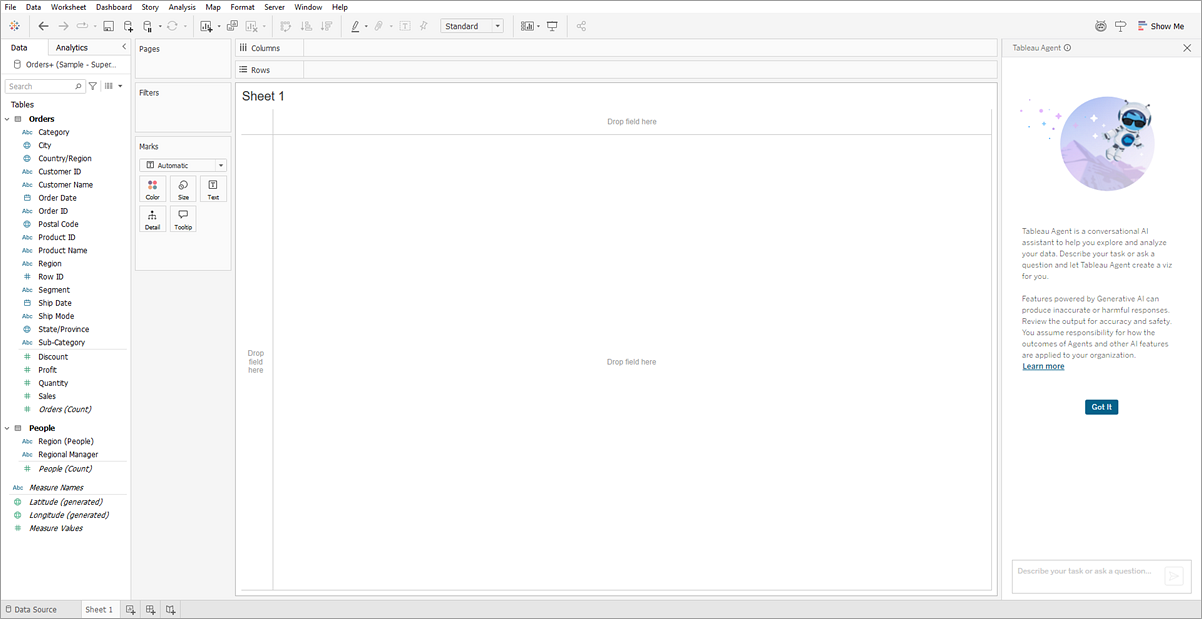
Tableau Agent can help with tasks like:
- Jumpstart your analysis: Tableau Agent can suggest analytical questions based on your data
- Build a viz: "How many action movies did each director make?"
- Choose the best chart type for an analysis: "Show me the distribution of student's grades"
- Perform time series analysis: "What month had the largest growth in number of donors compared to the previous month?"
- Create calculated fields: "Create a field that calculates the difference between case open and closed dates and round up to weeks"
- Explain calculations: "Explain the "Days to Ship Actual" calculation"
- Filter and sort data: "Only look at Saltwater and show me the fish with the smallest tank options"
Tableau Agent in Dashboards (beta)
Tableau Agent in Dashboards is a beta feature that enables dashboard users to get a summary about the dashboard or quickly find insights. They can also ask deep dive questions about their data using natural language.
Note: Starting in version 2026.3, in Tableau Desktop, you can only configure Tableau Agent in Dashboard settings. To access this capability, you’ll need to be connected to a Tableau Cloud site with Tableau Cloud+, or Tableau+ (or a Tableau Cloud trial site) with Tableau Agent in Dashboards turned on. Tableau Agent in Dashboards isn’t available when connected to a Tableau Server site. To use the full Tableau Agent in Dashboard capabilities, open your dashboard on the web. For more information see Tableau Agent in Dashboards (Beta)(Link opens in a new window).
Configure Tableau Agent in Dashboards
To allow your dashboard users to access the Dashboard Overview, Dashboard Insights, and Dashboard Q&A capabilities, you can toggle each capability on or off.
Note: You must also grant them AI Access and Full Data Query permissions. By granting these permissions to your users, all capabilities are turned on by default and available on the dashboard. For more information, see Permissions(Link opens in a new window).
Tableau Agent in Dashboards supports the following capabilities:
-
Dashboard Q&A: Lets users ask “What" and "Why" questions using natural language. For example "What California facilities classified as urgent care have an average wait time of > 90 minutes?". "Why does "Customer A" have a large negative profit? This capability enables users to dive deeper into the data in the dashboard as well as the underlying data source if granted the Full Data Query permissions.
-
Dashboard Overview: Scans the visualizations in a dashboard and returns a summary to tell the viewer what the dashboard is about. This helps them quickly get context about the dashboard and know it's for them.
-
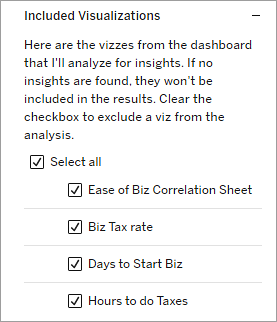
Dashboard Insights: Creates a set of summary insights based on the vizzes in the dashboard. With Dashboard Insights, dashboard consumers can quickly focus on the insights that matter most, viz by viz
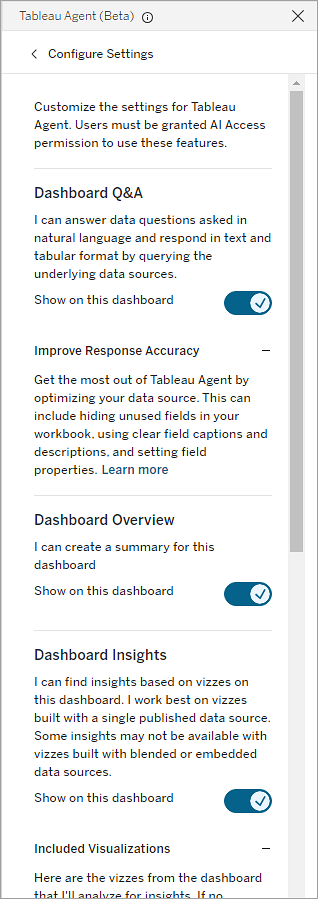
As a dashboard author you can also modify the insight settings to only include vizzes that you want the Dashboard Insights capability to consider.
For more information, see Explore our Dashboards with Tableau Agent (Beta)
Tableau Agent and Trust
Tableau Agent (in Tableau Cloud) is built on top of the Einstein Trust Layer(Link opens in a new window) and inherits all of its security, governance, and Trust capabilities. As you interact with Tableau Agent, data and conversations sent to the Large Language Model (LLM) aren't saved to the LLM. No customer data is ever used to train the model. For more information about AI in Tableau, the Einstein Trust Layer, see AI in Tableau(Link opens in a new window).
Tableau Agent in Tableau Server (version 2025.3 and later) doesn't use the Einstein Trust Layer. Instead you connect directly to your Large Language Model provider. For more information, see AI in Tableau and Trust(Link opens in a new window) and Turn on AI in Your Tableau Server Site(Link opens in a new window).
Tableau Agent billing considerations
Note: Starting October 2025, AI in Tableau no longer consumes Einstein Request credits for AI usage. Other services, such as Data 360 services, can still consume other types of credits. Data 360 credits include Data Service credits and Flex credits. The type and number of credits consumed varies based on the credit model you have chosen for your Salesforce org. For more information, see Einstein Request & Flex Credit Rate Card Updates FAQ(Link opens in a new window) and Billing Considerations for Audit and Feedback(Link opens in a new window) in the Salesforce Help Center.
When you use generative AI features when connected to Tableau Cloud, it may consume Data 360 credits if you're using the Einstein data collection and Storage (also known as Audit Trail) feature as part of your AI in Tableau setup. For more information, see AI in Tableau Usage(Link opens in a new window).
If you’re using generative AI features when connected to Tableau Server, you’ll be connecting to your organizations’s own LLM provider. Requests don't go through the Einstein Trust Layer or incur any associated billing. Your usage will be billed directly, according to your specific LLM provider agreement. For more information, see Turn on AI in Your Tableau Server Site(Link opens in a new window).
Get started with Tableau Agent
You can open Tableau Agent by selecting the Agent icon  in the toolbar next to Show Me or from the top bar in the Calculation editor.
The icon will only show or be active if the following conditions are met:
-
Tableau Cloud: You have an active internet connection, and are signed in(Link opens in a new window) to a Tableau Cloud site with Tableau Cloud+ or Tableau+ and AI in Tableau turned on for web authoring. You must also have permissions to access Tableau Agent. For more information, see Turn on AI in Tableau for Your Site(Link opens in a new window).
-
If you don't have a Tableau Cloud site with Tableau Cloud+ or Tableau+, but want to try Tableau Agent features, you can sign up for a Tableau Cloud free trial, which includes Tableau Agent features. To start your trial, fill out this form, or contact your Account Executive.
-
-
Tableau Server (version 2025.3 and later) You're signed into a Tableau Server site with AI in Tableau configured and turned on for web authoring. For more information, see Turn On AI in Your Tableau Server Site(Link opens in a new window).
-
You are on a worksheet tab and connected to a data source.
-
Tableau Agent isn't available for stories or for Dashboards when connecting to Tableau Server. Starting in version 2026.3, if you connect to Tableau Cloud, you can configure Tableau Agent in Dashboards settings, but no other capabilities are available. For more information, see Tableau Agent in Dashboards (Beta)(Link opens in a new window).
Tableau Agent is recommended for use on data extract or file-based data for improved performance. Tableau Agent for viz authoring also works with live connections, or uploaded files with .hyper, .csv, .txt, and .xlsx file types. Cubes aren't currently supported.
To learn more about what Tableau Agent can do and how to get the best results, see Explore Your Data with Tableau Agent(Link opens in a new window) and Tableau Agent FAQ(Link opens in a new window).