
Explore your Dashboards with Tableau Agent (Beta)
Tableau Agent in Dashboards is a pilot or beta service that is subject to the Beta Services Terms at Agreements - Salesforce.com(Link opens in a new window) or a written Unified Pilot Agreement if executed by Customer, and the Non-GA Gen AI, Non-GA Open AI LLM Provider, and Non-GA Multiple Infrastructure terms in the Product Terms Directory(Link opens in a new window). Use of this pilot or beta service consumes Customer Data Cloud Credits as applicable and use is at the Customer's sole discretion.
Tableau Agent in Dashboards is an AI assistant that can help business users:
-
Get a summary of what the dashboard is about
-
Get insights about the vizzes in the dashboard
-
Ask deep-dive questions using natural language
As a dashboard author you can turn each capability on or off at the dashboard level. You can also configure the dashboard insights to include or exclude certain worksheets, or focus on only certain types of insights.
At this time, Tableau Agent in Dashboards can't help you build a dashboard
Getting started
Before you can start using Tableau Agent in Dashboards, there are a few things to set up.
General requirements
-
Make sure your published data sources and workbooks are optimized for AI consumption. For more information see Tableau Agent Best Practices(Link opens in a new window).
-
Turn on Tableau Agent in Dashboards for your site and opt into the Beta.
-
Tableau Cloud: Requires Tableau Cloud+, Tableau+, or a Tableau Cloud trial site. For more information, see Turn on AI for Tableau in Your Cloud Site(Link opens in a new window).
-
Tableau Server (version 2026.3 and later): Requires Tableau Server+. If using a custom gateway with OAuth authentication, Tableau Agent in Dashboards is not available. For more information, see Turn on AI in Your Tableau Server Site(Link opens in a new window).
-
-
Grant the AI Access and Full Data Query workbook permissions for your dashboard users. For more information, see Prerequisites(Link opens in a new window).
Note: Starting in version 2026.2.4, existing beta users need to be granted AI Access to avoid losing access to Dashboard Overview and Dashboard Insights capabilities. If you previously turned these options off, adding the AI access and Full data query permissions to users will turn these capabilities on by default.
Dashboard consumer requirements
To access Tableau Agent in Dashboards as a user consuming a dashboard, the following must be true:
-
You must be on a dashboard. Tableau Agent in Dashboards capabilities aren't available on worksheets or stories.
-
You must be signed into a Tableau Cloud site with Tableau Cloud+, Tableau+, a Tableau Cloud Trial site, or a Tableau Server site (version 2026.3 or later) with Tableau Server+. Tableau Agent in Dashboards must be turned on.
-
You must have the AI Access and Full Data Query permissions on each workbook where you want to use Tableau Agent in Dashboards.
-
For Dashboard Insights, the dashboard must use a published data source, not a data source that is local to the dashboard (embedded). Dashboard Q&A supports both published data sources and embedded data sources.
-
The dashboard must include at least one visualization and that viz can't be empty.
Note: Each capability (Dashboard Overview, Dashboard Insights, and Dashboard Q&A) can be turned on or off by the dashboard author. Which capabilities are turned on determines what you have access to on your dashboard.
Dashboard consumers
As a dashboard consumer use these capabilities to get a summary about your dashboards, get insights, and dive deeper into the data by asking your own questions.
Dashboard Overview
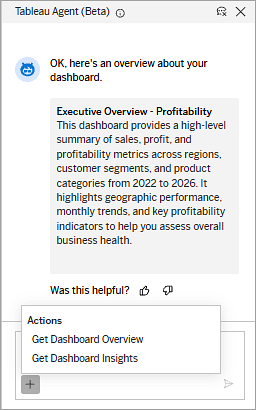
The Dashboard Overview capability helps you understand what the dashboard is about. At its core, this feature answers the question "is this dashboard what I need for my analytical question?".
In general, this feature is more useful for new users to a dashboard, or those looking for a high-level summary about what it contains. The summary may change whenever the underlying data refreshes.
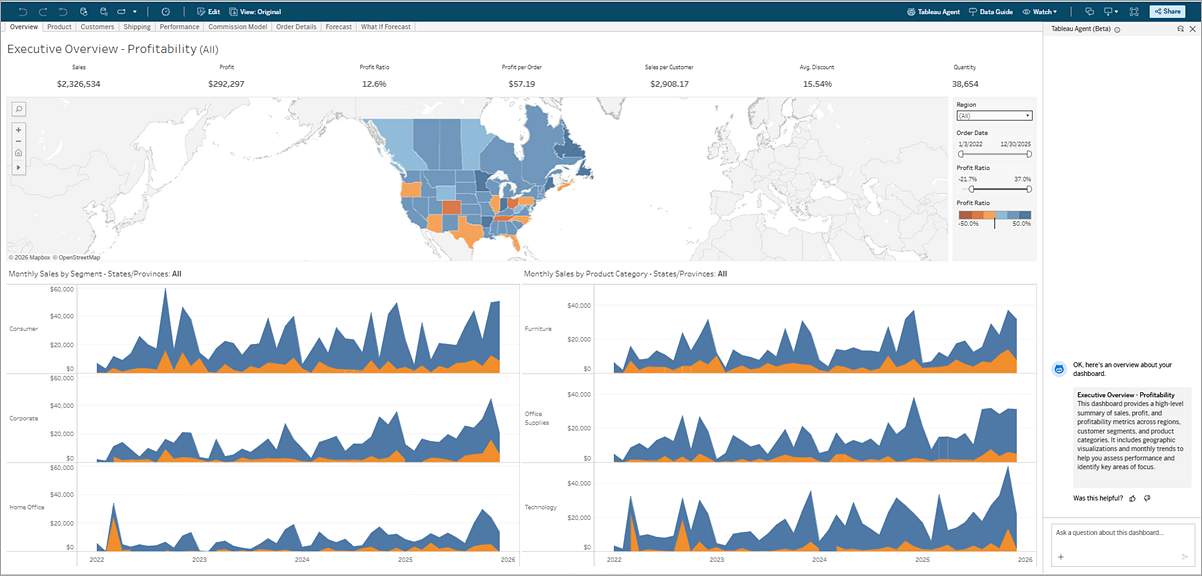
Get Dashboard Overview
-
In a dashboard, click the Tableau Agent
 icon to open the Tableau Agent pane, then click Got It.
 -
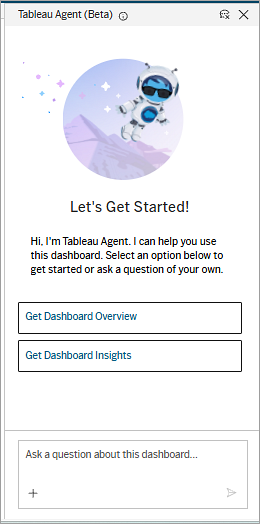
In that Tableau Agent pane, select Get Dashboard Overview. Starting in version 2026.3, you can also ask for an overview by typing in the text box.
-
To refresh your dashboard overview, in the text box, click the + button, then select Get Dashboard Overview from the Actions menu or ask for a new overview by typing in the text box.
Dashboard Insights
The Dashboard Insights capability of Tableau Agent helps you understand the analysis on a dashboard. This feature looks at the specific vizzes in the dashboard and provides natural language insights from the data, viz-by viz. Dashboard Insights is useful for those looking for a deeper understanding of the analytical story in the dashboard. Insights may change whenever the underlying data refreshes.
Note: Dashboard Insights only has access to the data that's used in the dashboard (what's available when you download the dashboard). Any unused fields in your data source aren't accessible by Tableau Agent and aren't included in the insights it creates
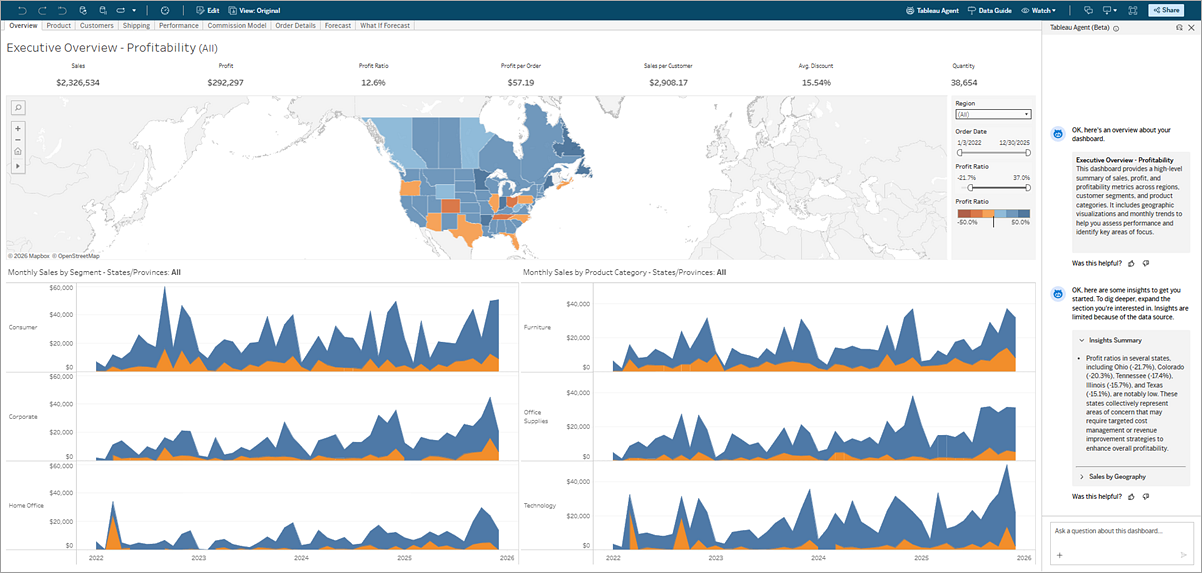
Get Dashboard Insights
-
If opening the Tableau Agent pane for the first time, in a dashboard, click the Tableau Agent
icon. Then click Got It. -
Select Get Dashboard Insights. Starting in version 2026.3, you can also ask for insights by typing in the text box.
-
If you are on an existing dashboard, and already selected Get Dashboard Overview or types a request for an overview, do one of the following:
-
Click the + button, then select Get Dashboard Insights from the Actions menu.
-
Ask for dashboard insights by typing in the text box.
-
Dashboard Q&A
Dashboard Q&A lets you dive deeper into the data on your dashboard as well as the underlying datasource. Using the text box you can ask questions about your data using natural language.
Supported question types
There are several main actions available to Tableau Agent to support user requests and questions, including:
-
Slice and dice with dimensions: "Show me the breakdown of admissions to the emergency department by speciality and triage severity."
-
Filter on dimensions or measures: "How many of those visits were for patients under 18 who ended up admitted?"
-
Work with dates: "What was the average wait time during the first week of June 2025?"
-
Compare multiple measures and dimensions: "By location, how did our CSAT scores compare with our wait times for May, June, and July this year vs last year?"
-
Get data-backed hypotheses of why something happened: "What impacted the improved CSAT scores at Meadowbrook in May?"
-
Drill down into details: "How many of the high CSAT scores were from shifts when a therapy dog was present?"
Avoid asking about general knowledge or factors outside the dashboard. For example, Tableau Agent wouldn't be able to accurately answer "Are my profits impacted by the stock market?" unless you have stock data in your data source.
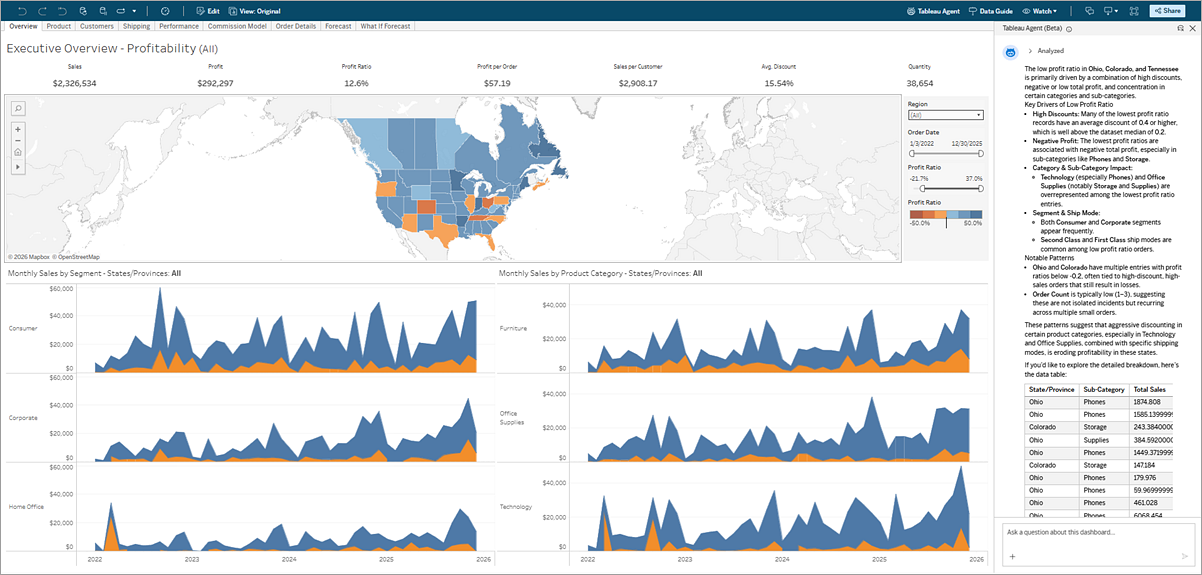
Filters
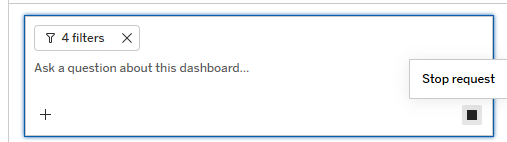
Starting in version 2026.3, Tableau Agent may suggest relevant dashboard filters, in the form of a Filter chip, as additional context when you ask a question in the text box.
What's included in a Filter chip:
-
Included: Filters with a visible control on the dashboard (including parameter controls that impact or drive a viz filter) or filters shared across dashboard sheets.
-
Excluded: Viz-local filters without a visible UI control or cross-sheet sharing. However viz-local filters are still passed in the background as context to the AI engine.
Note: Tableau Agent uses all filters included in the dashboard when creating dashboard overviews or insights.
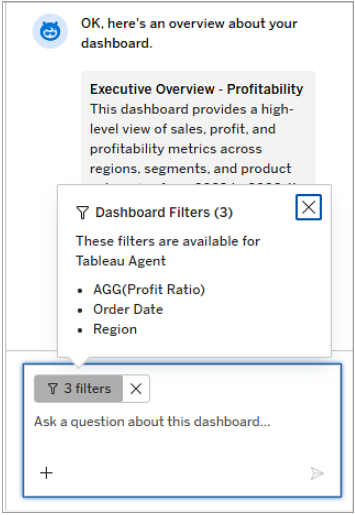
-
In the text box, click on the Filter chip to see the list of filters that are included.
-
You can override dashboard context filters if your question is referencing a field for that specific viz.
-
Filter context is captured from a snapshot of the workbook state when your question is submitted, not updated live. If you change a filter after asking a question, but before getting an answer, the answer reflects the filter state at submission time, and the chip should indicate that.
-
Click the X on the Filter chip if you don’t want to include these filters as context for your request.
Ask questions about your data
-
If opening the Tableau Agent pane for the first time, in a dashboard, click the Tableau Agent
icon. Then click Got It. -
In the text box, type your question using natural language.
Note: Dashboard Q&A requires you to have both the AI Access and Full Data Query permissions to use this capability. Contact your administrator or the workbook owner to request this access. For more information, see Permissions(Link opens in a new window).
Tableau Agent will return a response in a table format or even a viz (version 2026.3 and later) that you can hover over to view tooltips for the marks.
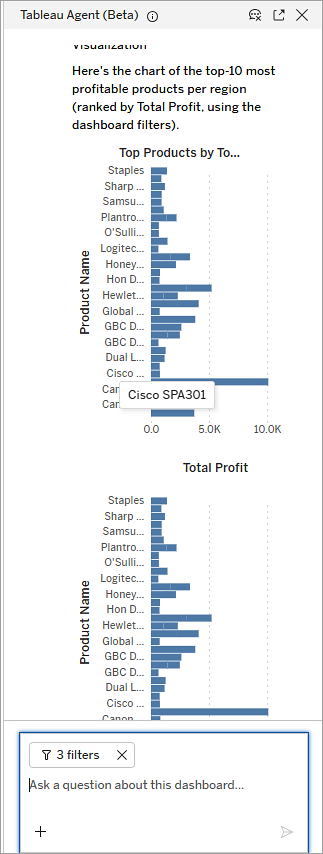
-
Use the pop out
 option (version 2026.3 and later) at the top of the Tableau Agent pane to pop out the pane into a floating window.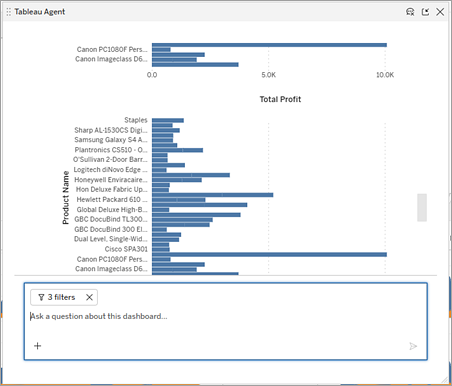
-
If the response is taking too long, you can click the Stop request option (version 2026.3 and later) in the text box and try your question again.
Dashboard authors
Tip: To get the best results from Tableau Agent, make sure your data is optimized for LLM consumption. See Improve response quality for Dashboard Q&A and Tableau Agent Best Practices(Link opens in a new window).
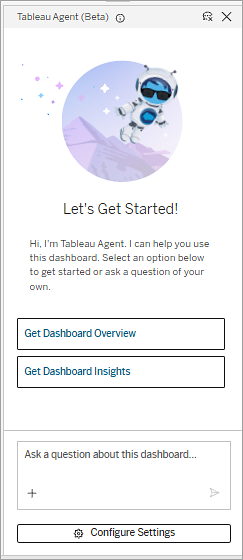
As a dashboard author, Tableau Agent must be used on an existing dashboard, it can't help you build a dashboard. To access Tableau Agent in Dashboards, navigate to a dashboard tab in the authoring environment of a workbook and click the Tableau Agent icon in the toolbar. This opens the pane. Accept the disclaimer to continue.
With the Tableau Agent pane open on a dashboard, you have multiple options. You can:
-
Click a button to see the dashboard overview or insights
-
Ask for an overview or insights (version 2026.3 and later) or ask questions about your data using the text box
-
Configure the Tableau Agent settings
Turn on Tableau Agent in Dashboards for consumers
To allow your dashboard users to access the Dashboard Overview, Dashboard Insights, and Dashboard Q&A capabilities, you must grant them AI Access and Full Data Query permissions. By granting these permissions to your users, all capabilities are turned on by default and available on the dashboard.
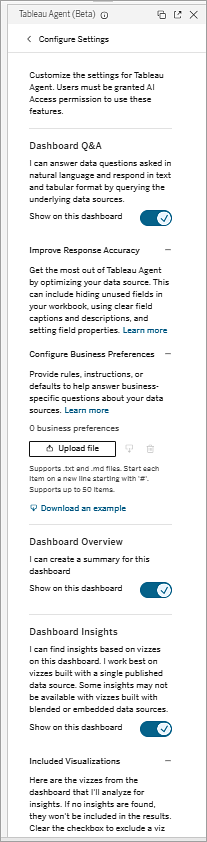
You can customize Tableau Agent capabilities per dashboard, turning each on on and off as needed.
-
In a dashboard, in authoring mode, click the Tableau Agent
icon to open Tableau Agent. If this is the first time opening the pane, click Got it. -
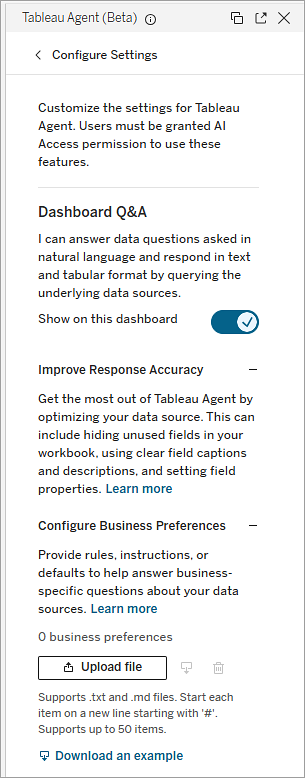
At the bottom of the Tableau Agent pane, click Configure Settings.
-
For each capability, select the toggle button next to Show on this dashboard.
Improve response quality for Dashboard Q&A
Supported in Tableau Cloud (Tableau Cloud+ or Tableau+) version 2026.2.6 and later
To help Tableau Agent provide more accurate, organization-specific answers during Dashboard Q&A, you can configure business preferences to curate data source metadata available to the agent.
Business preferences allow you to provide rules, instructions, or default behaviors to help Tableau Agent answer business-specific questions about your data sources (such as "products are in stock when quantity_on_hand is positive" or "default year to fiscal year"). Business preferences explain how a business uses data.
Business preferences apply at the workbook level. When you upload business preferences to a workbook, Tableau Agent will refer to the business preferences document for any dashboard associated with that workbook.
Business Preference levels
Starting in version 20206.3, Tableau Agent in Dashboards can integrate with Tableau Knowledge to ingest global business preferences. Tableau Knowledge is an enterprise knowledge management solution that helps AI agents understand your organization's data and business context by connecting Tableau Cloud content and business knowledge into live knowledge graphs. For more information see About Tableau Knowledge(Link opens in a new window).
Note: To enable Tableau Agent in Dashboards to ingest global business preferences defined in Tableau Knowledge, Tableau Knowledge must be turned on in the Site settings. Tableau Knowledge is available in Tableau Cloud only. For more information see Turn on AI in Your Tableau Cloud Site(Link opens in a new window).
Business preferences can be applied at either the Global level (via Tableau Knowledge) or the workbook level:
Global business preferences (Tableau Knowledge):
-
Created and managed directly within Tableau Knowledge to apply across an entire knowledge graph.
-
Tableau Agent uses global business preferences when processing and answering user requests.
Global preferences defined in Tableau Knowledge are used by Tableau Agent during query routing and execution, but they are not displayed when retrieving or viewing the list of workbook-level business preferences in Tableau.
Workbook-level business preferences:
-
Uploaded directly to a specific workbook from Tableau Agent in the Dashboards Configuration Settings.
-
Tableau Agent uses these preferences when responding to queries within that workbook's dashboards.
-
Workbook business preferences are visible and accessible when requesting or managing the list of preferences in the workbook settings.
-
When you upload business preferences to a workbook, Tableau Agent will refer to the business preferences document for any dashboard associated with that workbook.
-
If your site uses Tableau Knowledge, Tableau Knowledge automatically ingests workbook-level business preferences when the workbook is published and includes them in the workbook node if it is included in the knowledge graph.
Business Preferences file requirements
Note: To upload a business preferences file, you must be granted AI Access permissions on the workbook and have write/edit permissions for the underlying workbook or Published Data Source (PDS).
When creating a business preferences file, make sure it meets the following requirements:
-
File formats: Supported file types are text files (.txt) and Markdown files (.md).
Note: Tableau Knowledge global document uploads also support .pdf, .docx, and .csv files.
-
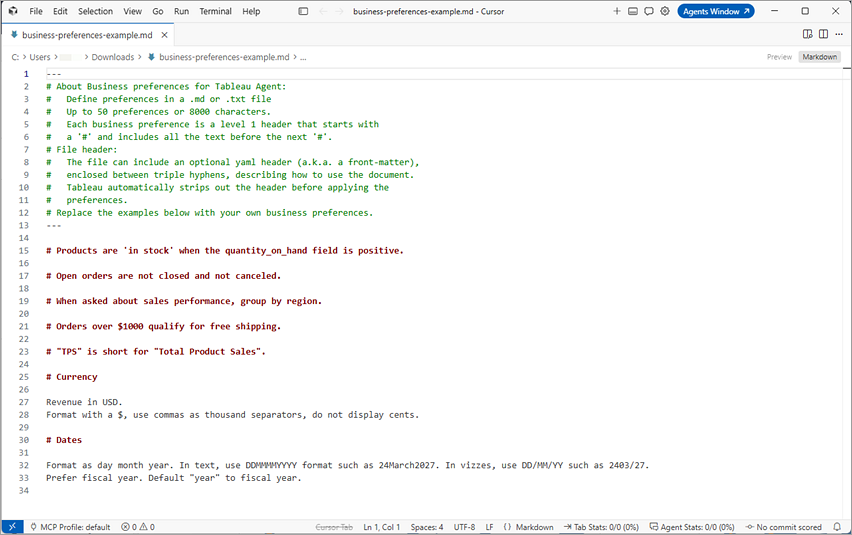
Structure: Start each preference item on a new line starting with #. Tableau Agent reads this line item as the header. All text following the header until the next # is treated as part of that preference and counts as one preference.
-
Item limit: Supports up to 50 preferences (or up to 8,000 characters).
Note: The 8,000-character limit starts from the first valid preference header and includes whitespace (front matter excluded). If a file exceeds 8,000 characters, preferences are loaded in order up to that limit. Also, total file size (including front matter) cannot exceed 500K.
-
Metadata header (optional): You can include a YAML front-matter block between triple hyphens (---) at the top of the file to describe usage. This block is saved as part of the file, but ignored by Tableau Agent.
To help you create a Business Preferences file you can download an example file in the Tableau Agent Configure Settings pane and use it like a template, replacing the suggested content with your own content.
Tips for creating business preferences
Follow these guidelines when creating your business preferences document:
-
Keep it short: Write concise, simple instructions to avoid confusing the agent.
-
Include business specific knowledge: Define domain-specific rules, unique terminology, or custom metrics (e.g., "default year to fiscal year").
-
Be explicit and specific: Describe unique domain logic clearly. Reference exact field names and specify how calculations apply so Tableau Agent doesn’t have to guess your schema or semantic model.
-
Avoid conflicts: Creating workbook-level business preferences that conflict with global business preferences defined in Tableau Knowledge can be confusing to the agent.
-
Avoid ambiguity: Eliminate duplicate or overlapping rules. Make each line item distinct so Tableau Agent can apply them consistently.
-
Break down complex instructions: Split multi-step or intricate logic into individual, bulleted preferences to improve response accuracy
For more tips and best practices, see “Create Business Preferences” in Tableau Agent Best Practices(Link opens in a new window).
Considerations and limitations
-
Publish the workbook to save the uploaded business preference document as part of your configuration settings. If the workbook node also exists in Tableau Knowledge, then the workbook-level business preferences are updated there as well. Uploaded files aren’t saved when you close a draft.
-
If you publish a new update to Tableau Cloud from Tableau Desktop, the Business Preference file will be removed. Download the Business Preferences file first before publishing any updates, then upload it again.
-
Undo and Redo are not currently supported. If you upload the wrong file, you can’t use Undo to revert to the previous state. You’ll need to cancel your editing session, and reopen it to upload a different file.
-
Business preferences documents currently only apply to the Dashboard Q&A capability.
Upload or manage business preferences
-
In a dashboard, in authoring mode, click the Tableau Agent
icon to open Tableau Agent. If this is the first time opening the pane, click Got it. -
At the bottom of the Tableau Agent pane, click Configure Settings.
-
Under Dashboard Q&A, verify that Show on this dashboard setting is toggled on.
-
Under the Configure Business Preferences section, do one of the following:
-
Download an example: Click Download an example to get a template showing how to structure your preferences file.
-
Upload a file: Click Upload file, select your .txt or .md file, and click open.
-
Download or replace an existing file: Use the download icon to retrieve the currently uploaded preferences, or click Upload file to replace it.
-
Remove business preferences: Click the delete icon to delete the uploaded preferences file.
-
-
Publish your dashboard to save your uploaded file to the workbook.
Configure Insight Settings
To modify the default settings for Dashboard Insights, click Configure Settings at the bottom of the pane to open the Configure pane.
Worksheets
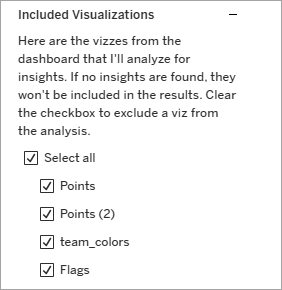
The Included Visualizations area lists all the worksheets in the dashboard. Clear the check box for any vizzes you don't want the Dashboard Insights capability to consider.
Insight Types
Tableau Agent supports a number of insight types. If Tableau Pulse is enabled in the Tableau Cloud site, additional insight types will be available. Not all insight types will be evaluated for all vizzes. For example time comparisons won't be available unless there's a continuous date dimension present.
The Insight Types area lists what descriptive analysis Tableau Agent looks for in each viz. If you don't want a specific insight to be included in the output, clear the check box for that insight type. Clearing a check box prevents that insight type from being assessed for the entire dashboard. You can't configure insight types for a specific viz.
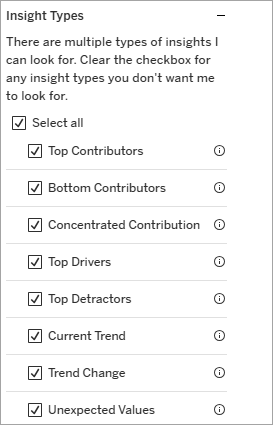
For more details on what each insight type does, click the information icon in the UI or see "Dashboard Insights" in Tableau Agent for Dashboards (Beta)(Link opens in a new window).
Test your output
As a dashboard author, you can use Tableau Agent in Dashboards while in the authoring environment. This can be useful to verify that a dashboard presents the analysis you expect and has a clear data story.
It's also important to test the output if you plan to turn this feature on for your consumers to ensure everything looks as it should..
Tips for getting the best results
-
Use the Tableau Agent Best Practices(Link opens in a new window) checklist to make sure your data source, workbooks, and dashboard are optimized for Tableau Agent.
-
Upload business preferences to improve answer quality for Dashboard Q&A.
-
Avoid duplicate field names. Duplicate field names or ones that are too similar can confuse Tableau Agent and it won't know which field to query. Make sure field names are unique, distinct and descriptive.
- Avoid overly complex dashboards. A simple grid design is best. For example, if there are a lot of overlapping floating objects, Tableau Agent may not be able to effectively understand your dashboard layout.
- Give all vizzes a title. Tableau Agent will do its best to interpret what it sees, but it's better to be explicit.
-
Relative dates: Tableau Agent handles specific date ranges more reliably than relative date terms (like “last quarter” or “this year”). For example, when asking a question use “Show sales from April 1, 2026 to Jun 30, 2026” or “Filter to Q2 2026".
- Charts built with manipulations of the underlying data may send misleading information to the LLM. To reduce the impact on dashboard consumers, consider not including charts that are built with chart-specific modifications to the data.
- For example, waterfall charts are constructed using a Gantt mark type with a negative measure to make the bar the correct length. The LLM receives the negative measure and will therefore misconstrue the direction of the mark.
Be the human in the loop
As with all AI, it's important to review the results you get when using Tableau Agent. Tableau Agent does its best to understand your data, but it might not always get it right. When reviewing insights, always check the output for accuracy. Remember, you know your data best.
If Tableau Agent gets something wrong, you can try getting insights again. You can also provide feedback at any time on the results with the thumbs up or thumbs down buttons that show up with every Tableau Agent response.
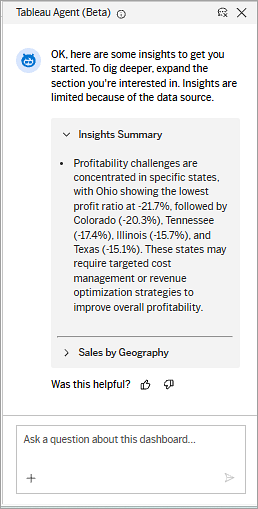
Tableau Agent in Dashboards limitations
Tableau Agent in Dashboards is currently in Beta, and has the following limitations:
- Cross-Level measures: Cannot compare measures across different levels of detail (e.g., comparing local loan amounts directly against a global average).
-
Parameter usage: Passing parameter values into queries is not currently supported.
- Fiscal Year formats: Does not auto-detect fiscal dates set via standard Date Properties.
Workaround: Create a calculated field using a date offset, then hide the original field or add a detailed description (e.g."Fiscal calendar date field for revenue recognition").
- Name filtering: Specific queries like "customers with the last name of [X]" will fail.
Workaround: Query using "starting with..." or separate full names into distinct Customer First Name and Customer Last Name fields.
-
Virtual connections: Currently Tableau Agent doesn’t understand field names when a data source uses a virtual connection. Instead the fieldNames is returned as a LUID resulting in Tableau Agent selecting the wrong fields.
-
User filters: While Tableau Agent respects user filters applied at the data source, if user filters are applied at the workbook or view level, to maintain row level security and governance, Tableau Agent in Dashboards will not answer any questions.
-
Personalization ("My Data"): Tableau Agent has no concept of current user identity. Asking "What are my sales?" fails.
-
Workaround: Explicitly state the user (e.g., "What are sales for salesperson = John Doe?").
-
-
Business preferences: Business Preferences is not supported in the Configuration Settings pane in Tableau Desktop. If you publish a workbook using Desktop, and the existing published workbook on Tableau Cloud has business preferences, the newly published version from Desktop will overwrite and remove the existing business preferences.
-
Workaround: Use web editing, or before publishing to Tableau Cloud, download the business preferences and then upload them again.
-
-
Tableau Desktop: Tableau Agent in Dashboards isn’t available when connected to Tableau Server. You can configure Tableau Agent in Dashboard settings when connected to a Tableau Cloud site with Tableau Cloud+, Tableau+, or a Tableau Cloud Trial site with Tableau Agent in Dashboards turned on. Tableau Agent in Dashboards capabilities for getting an overview, insights or asking questions using Dashboard Q&A is not supported.
-
Mobile support: Tableau Agent in Dashboards is not currently supported.