
Capacity Managed in Tableau Cloud Manager
Capacity management is a collection of capabilities found on the Capacities page in Tableau Cloud Manager (TCM). Capacity management in TCM gives cloud administrators greater visibility and control over how resources are distributed across the sites on a tenant.
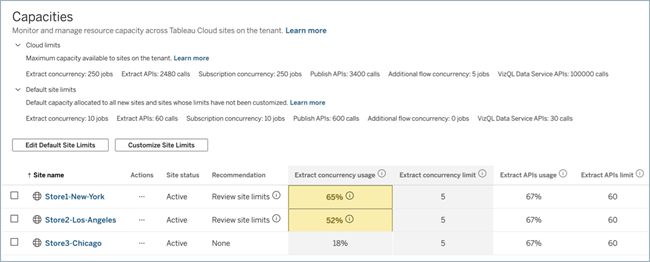
Starting from May 2026 (Tableau 2026.1), capacity is a combination of fixed site limits and site limits that are configurable at the tenant-level. Certain capabilities are consolidated into tenant-level limits, referred to as cloud limits, that form a shared pool of capacity. As a cloud administrator, you can draw from this pool to allocate capacity to sites that need it the most.
The following capacity types can be managed through in TCM:
- Extract concurrency
- Extract APIs
- Subscription concurrency
- Publish APIs
- Flow concurrency
- VizQL Data Service APIs
- Visualizations (if licensed with capacity-based model)
- Pulse digests (if licensed with capacity-based model)
Notes:
- The type of capacity that you can manage in TCM is subject to change as we evolve our infrastructure.
- Capacity can be increased by the Tableau Cloud edition, number of Creator licenses; or by enabling the capacity-based license model for viewers.
This topic covers the tenant-level capacities that are configurable and can be allocated across the sites on the tenant by using TCM. For capacities with fixed limits, optimizing for those limits, and troubleshooting suggestions, see Capacity Set at the Site.
Benefits of managing capacity in TCM
Capacity management in TCM provides the following benefits:
- Proactive visibility. See tenant-level and site capacity limits. Use consumption data and highlights to take timely action when sites are approaching or reaching limits to reduce impacts on your users.
- Flexibility to redistribute resources. Move tenant-level capacity between sites based on usage and business need.
- Centralized administration. Manage allocation at the tenant level in TCM. You don't need to be a site admin on a specific site to view or adjust capacity.
- Support growth. Reserve capacity for new sites, seasonal spikes, or other periods of high demand.
Capacity in TCM
The Capacities page displays three categories of information:
- Cloud limits: Cloud limits is the pool of capacity for the sites on a tenant. The capacity values represent the maximum capacity available.
- Default site limits: Default site limits are the capacity allocated to all new sites and sites whose limits haven't been customized.
- Resource allocation and usage: Dashboard to monitor resource allocation and consumption across sites on the tenant. Consumption is represented by concurrency usage or rate-limit usage depending on the capacity type and highlighted by visual indicators when limits reach certain thresholds. For more information, see Capacity Metrics in Tableau Cloud Manager.
Note: Rate-limited usage capacity in TCM is measured on an hourly basis with the exception of Pulse digests (if available), which are measured on a daily basis.
Extract concurrency
A tenant comes with designated capacity for extract refresh jobs. Extract capacity is the number of concurrent extract refresh jobs a site on the tenant can run at one time.
Depending on available system resources, the wait time (that is, the time before a job starts) is adjusted to start a job within 15 minutes or less from the scheduled start time.
Jobs that count toward extract capacity include:
- Scheduled refreshes
- Manual refreshes
- Extract creation
- Certain command line or API calls that trigger refreshes, including appending data incrementally
For extract refresh job runtime and memory size limits, see Extracts - daily, runtime, and memory usage.
Note: Tableau Bridge refreshes of embedded extracts and virtual connections impact a site's extract concurrency capacity. For more information about which capacity types are impacted by Tableau Bridge, see Bridge Site Capacity
Extract APIs
A tenant comes with designated capacity for extract refresh API calls. Extract API capacity is the number of calls that can be made on a site during a one-hour period.
Calls that count toward extract API capacity include:
- Tableau REST API: Run Extract Refresh Task(Link opens in a new window), Update Data Source Now(Link opens in a new window), and Update Workbook Now(Link opens in a new window)
- tabcmd: refreshextracts(Link opens in a new window)
- Tableau Client (Python) library(Link opens in a new window): calls to initiate extract refresh jobs
Note: If the number of calls exceed the API or command line calls capacity described above, you see one of the following errors: Unknown 429 or ApiCallError: 429000: Too Many Requests – Too many requests for <job type> 'api.rest.refresh_extracts'. Please retry after 146 second(s).
Subscription concurrency
A tenant comes with designated capacity for subscription jobs. Subscriptions capacity is the number of concurrent subscription jobs a site can run at one time.
Depending on available system resources, the wait time (that is, the time before a job starts) is adjusted to start a job within 15 minutes or less from the scheduled start time.
Jobs that count toward subscription capacity include generating emails from subscriptions created through Tableau Cloud directly or API calls that generate the email subscriptions.
For subscription job runtime and email size limits, see Subscriptions - runtime and email size.
Publish APIs
A tenant comes with designated capacity for publish API calls to initiate publish and update jobs.
Calls that count toward publish API capacity include:
-
Tableau REST API: Publish Workbook(Link opens in a new window), Publish Data Source(Link opens in a new window), Update Workbook(Link opens in a new window), Update Data Source(Link opens in a new window), Tableau Prep flow runs(Link opens in a new window)
-
Tableau Client (Python) library(Link opens in a new window): Calls that initiate publish or update jobs for workbooks and data sources
Flow concurrency
Flows capacity is measured in resource blocks. Each resource block represents the number of concurrent flow jobs that can run at one time.
A site has a default capacity of 1 concurrent flow job, which is the equivalent to having one Resource Block.
If there are no Resource Blocks available when a flow job starts, the job goes into a queue to wait for a resource block to be available. A flow job might also go into a queue during busy hours even when there are available resource blocks to make sure that system resources remain available to support flow jobs across all of Tableau Cloud.
Notes:
-
Capacity management in TCM displays both concurrency usage and configurable limits. Flow concurrency usage capacity includes all flow jobs on a site (both default Resource Blocks for sites and purchased Resource Blocks for the tenant). However, Additional flow concurrency limit includes only purchased Resource Blocks and capacity that can be moved between sites.
-
The default Resource Block for a site is not viewable or moveable between sites in TCM.
For user request rates, flow job runtime, and memory usage limits, see Flows - user requests, daily, runtime, and memory usage.
VizQL Data Service APIs
A tenant comes with designated capacity for calls to the VizQL Data Service (VDS) API(Link opens in a new window). VDS API capacity is the number of VDS API calls that can be made on site during an hourly period.
Notes:
-
If your organization uses usage-based licensing (UBL), this capacity won't appear in TCM. This is because your account is managed by usage, not by a configurable capacity limit.
-
If your organization uses capacity-based licensing, VDS API capacity is determined by the Visualizations capacity.
Visualizations
Visualization capacity in TCM, available through capacity-based license model, is the tenant-wide number of requests that can run on a site during an hourly period to load dashboards and views, refresh view data, make calls to the VizQL Data Service (VDS) APIs(Link opens in a new window), explore Pulse metrics, and make calls to the Pulse APIs(Link opens in a new window).
Notes:
-
While a capacity-based licensing model provides a flexible tenant-wide request pool across your sites, each user is still subject to 600 requests per hour. The user request rate is fixed at the site level and not configurable in TCM.
-
If a capacity-based license model has not been enabled, visualization capacity is fixed at the site level and not configurable in TCM. For more information, see Visualizations - load time, timeout, request rate, memory usage.
-
If a capacity-based license model has not been enabled, VDS API capacity is tracked as a standalone capacity type. For more information, see VizQL Data Service APIs.
Pulse digests
Pulse digests capacity in TCM, available through capacity-based license model, is the number of scheduled digests that can be generated and sent on a site during a 24-hour period.
Note: Pulse digests don't have capacity limits in role-based usage models.
Manage capacity
Click the drop-down arrow button below to expand each section.
Changes introduced by capacity management
Click the drop-down arrow button to expand the section and see the changes introduced by capacity management in TCM.
Site allocation changes
Before capacity management, sites had a fixed set of capacity limits.
Starting in May 2026 (Tableau 2026.1), certain capacity limits are consolidated into tenant-level limits (also referred to as cloud limits), providing cloud administrators the flexibility to allocate capacity between sites on the tenant or hold capacity until it's needed for existing or new sites.
Extract concurrency changes
Before capacity management, sites with the Advanced Management add-on, or licensed with Tableau+ or Enterprise edition, were created with 25 concurrent extract refreshes.
Starting in May 2026 (Tableau 2026.1), all new sites are provisioned with a default limit of 10 concurrent extract refreshes. Cloud administrators can change this default.
Flow concurrency changes
Before capacity management, flow resource blocks were automatically provisioned to sites.
Starting in May 2026 (Tableau 2026.1), flow resource blocks are allocated at the tenant level. Cloud administrators can allocate purchased resource blocks to the site where they're needed.
Notes:
- Capacities page only allows purchased resource block limits to be configurable.
- Each site receives one Resource Block that can't be moved to other sites on the tenant.
Licensing model addition
To increase capacity for Tableau Cloud, you can enable the capacity-based license model that was introduced in July 2026 (Tableau 2026.2). The capacity-based license model, Capacity-based Viewer Blocks, replaces the edition's default capacity for the following capacity types: extracts, extract APIs, publish APIs, and subscriptions. Under the new model, you also get capacity for scheduled Pulse digests and additional visualizations capacity.
| Capacity type | Usage-based | Capacity-based |
| Extracts |
Standard: Up to 15 concurrent jobs per tenant Enterprise: Up to 25 concurrent jobs with 1 additional job per 10 Creator licenses per tenant Cloud+, Tableau+: Up to 50 jobs with 1 additional job for every 5 Creator licenses per tenant |
15 concurrent jobs per tenant |
| Extract APIs |
Standard: 120 calls per hour Enterprise: 240 calls with 1 additional call for every Creator license per hour per tenant Cloud+, Tableau+: 480 calls with 2 additional calls for every 1 Creator license per hour per tenant |
1,000 calls per hour per tenant |
| Flows |
Standard: 1 resource block per site Enterprise, Cloud+, Tableau+: Dependent on purchased resource blocks per tenant |
n/a |
| Publish APIs |
Standard: 800 calls per hour per tenant Enterprise: 1,200 calls with 1 additional call for every 2 Creator licenses per hour per tenant Cloud+, Tableau+: 2,400 calls with 1 additional call for every 1 Creator license per hour per tenant |
1,000 calls per hour per tenant |
| Pulse digests | n/a | 1,000 calls per day per tenant |
| Subscriptions |
Standard: Up to 20 concurrent jobs per tenant Enterprise: Up to 25 concurrent jobs with 1 additional job for every 10 Creator licenses per tenant Cloud+, Tableau+: Up to 50 concurrent jobs with 1 additional job for every 5 Creator licenses per tenant |
25 concurrent jobs per tenant |
| Visualizations |
Up to 600 calls per hour per user per site |
Up to 600 calls per user per site 300 calls per hour per tenant |
| VizQL Data Service APIs | 100 calls per every 1 Creator license per hour per tenant | n/a |
Frequently asked questions (FAQs)
Click the drop-down arrow to expand the section and see the capacity management frequently asked questions.
Do site limits still exist?
Yes, capacities displayed on the Capacities page are managed at the tenant level. This means, site limits will never be able to exceed the capacity available to the tenant. The capacities not displayed on the Capacities page continue to be site-specific capacity and can't be reallocated to other sites on the tenant.
Which capacities can I manage?
You can manage the following capacities in TCM:
- Extract concurrency
- Subscription concurrency
- Extract API calls
- Flow concurrency
- Publish API calls
- VizQL Data Service calls
- Visualizations (if licensed with capacity-based model)
- Pulse digests (if licensed with capacity-based model)
What can I do on the Capacities page?
- See the capacity allowances on the tenant
- See the capacity allocated to the sites on the tenant
- Manage and reallocate limits between sites on the tenant
- Access insights and recommendations on capacity usage across your sites on the tenant
Can I allocate capacity to sites where I'm not a site administrator?
Yes, capacity allocation is handled at the tenant level in Tableau Cloud Manager (TCM). You must be a cloud administrator to view and allocate capacity across any site on the tenant, regardless of whether you're a site admin on the specific site.
How are limits determined?
Capacity allowances are calculated based on your Tableau edition and number of Creator licenses. Starting in July 2026, capacity allowances can also be calculated based on the capacity-based license model.
What happens if I don't have enough capacity to create a new site?
If there isn't enough capacity to create a new site with your defined default site limits, the site will be created with minimum capacity limits, which are defined by Tableau.
| Capacity type | Minimum capacity limit |
| Extract concurrency | 1 |
| Extract API | 5 |
| Subscription concurrency | 1 |
| Publish API | 5 |
| Flow concurrency | 0 |
| VizQL Data Service API | 0 |
| Visualizations (if licensed with capacity-based model) | 10 |
| Pulse digests (if licensed with capacity-based model) | 0 |
If a tenant doesn't have enough minimum capacity, you'll see a site creation error. For more information, see the Troubleshoot capacity management section, below.
What happens when visualization capacity is exceeded?
When a site exceeds its visualization capacity, indicators will show in TCM notifying you as usage crosses warning and critical thresholds.
In addition, all cloud administrators will receive email notifications at specific thresholds notifying them of their limits. You can expect to see a maximum of one email per hour per reached threshold limit for each site.
Both indicators and email notifications are designed to provide proactive visibility into how much capacity has been exceeded. These notifications have been designed to help cloud administrators monitor heavy usage trends while allowing sites to maintain continuity and user access.
Customize site limits
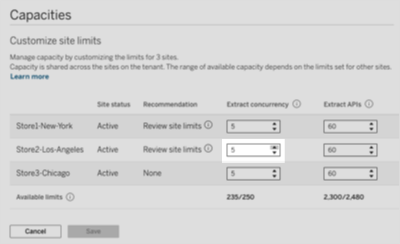
Each site on the tenant is allocated capacity limits. You can reallocate or modify capacity limits based on each site's capacity needs.
-
Sign in to Tableau Cloud Manager(Link opens in a new window) as a cloud administrator.
-
In the left-navigation pane, go to the Capacities page.
-
On the Capacities page, click the Customize Site Limits button.
-
Under the capacity type for a specific site, enter a new capacity limit or click the up or down arrow to adjust the capacity limit.
Note: The value you enter can't exceed the available limits for that particular capacity type.
Change default capacity limits
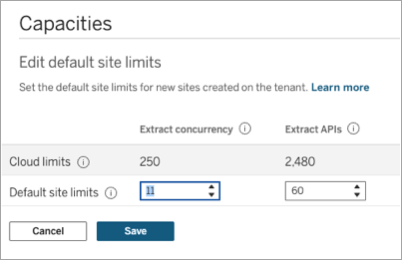
Each new site created on the tenant is allocated with default capacity limits. You can modify these limits.
Note: New sites are created with minimum capacity if there isn't enough default capacity available for the site. Without minimum capacity, site creation will fail with an error until the cloud administrator makes capacity available by moving it from existing sites. For more information, see Add, Rename, Delete, or Activate Sites.
-
Sign in to Tableau Cloud Manager(Link opens in a new window) as a cloud administrator.
-
In the left-navigation pane, go to the Capacities page.
-
On the Capacities page, click the Edit Default Site Limits button.
-
Under the capacity type, enter a new capacity limit.
Monitory capacity management
You can use Activity Log event logs to monitor capacity allocation changes. For example, you can query the following event types:
Troubleshoot capacity management
Use this section to help troubleshoot issues you might have with capacity management in TCM.
Unable to add new site
When adding a site to your tenant, you see the following error:
"Site couldn't be created because there is no available capacity. Edit the default site limits or customize the cloud limits and try again."
This issue can occur when there isn't enough minimum capacity available to create the new site. Every site on the tenant requires a minimum allocation of capacity to run. To resolve this issue, review the table for minimum capacity limits (which are defined by Tableau) and make more capacity available for the new site.
| Capacity type | Minimum capacity limit |
| Extract concurrency | 1 |
| Extract API | 5 |
| Subscription concurrency | 1 |
| Publish API | 5 |
| Flow concurrency | 0 |
| VizQL Data Service API | 0 |
| Visualizations (if licensed with capacity-based model) | 10 |
| Pulse digests (if licensed with capacity-based model) | 0 |
To make more capacity available, consider moving capacity from other sites to make more unallocated capacity available.
-
Sign in to Tableau Cloud Manager(Link opens in a new window) as a cloud administrator.
-
In the left-navigation pane, go to the Capacities page.
-
On the Capacities page, click the Customize Site Limits button.
-
Identify the site and capacity types that have capacity that you can make available.
-
Enter a value or select the down arrow button next to the capacity type to reduce the capacity limit.
-
When done, click Save.
After you have made some capacity available by customizing the capacity limits, add the new site again. For more information about adding sites, see Add, Rename, Delete, or Activate Sites.
Reduce site limits message
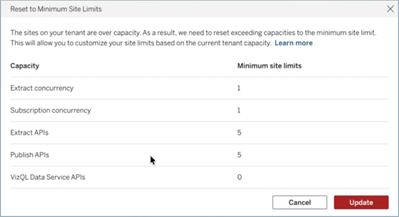
When the capacity management dashboard on the Capacities page displays a red (error) indicator and the Recommendation column displays a "Reduce site limits" message, the site limits in aggregate exceed the limits for the tenant, also referred to as cloud limits.

The most common reason for this issue is when the Creator license quantity changes and should be resolved immediately to avoid compliance issues. To resolve this issue, you can move capacity for sites that are above the limit by reallocating capacity by following the steps described in Capacity Managed in Tableau Cloud Manager.
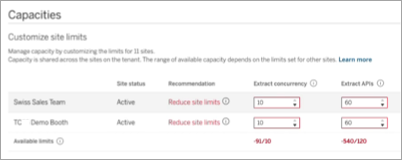
Note: If, after customizing limits, the total site allocations continue to exceed your tenant's limits, you are prompted to reduce capacities to their minimum limits. After you have accepted the minimum limits, you can then adjust the capacity across your sites within the available tenant-level limits by going back to the Customize site limits page.
Update capacity API errors
When you use the Update capacities(Link opens in a new window) REST API method to reallocate limits programmatically, you might encounter update failures if the request attempts to allocate more than available capacity or less than the Tableau-defined minimum limit.
The API can return the following error codes and messages:
- 207
errorCode: "POLICY_STORE_INVALID_SITE_LIMIT",message: "Site limit for <siteId> <x> is below minimum <y>"errorCode: "POLICY_STORE_SITES_LIMIT_OVERFLOW",message: "Total site limits (<x>) exceeds cloud limit (<y>) for capacity: <capacity_name>"
- 400
-
errorCode: "VALIDATION_ERROR",message: "The following site IDs are suspended and cannot be updated: <siteId1>, <siteId2>, ...
-
To resolve the 207 update errors:
- Review the error response to identify which capacity types exceeded limits.
- Verify available tenant-level limits in TCM's Capacities page before making API calls.
- Make sure the site allocations don't exceed the tenant's limits.
To resolve the 400 update errors:
-
Make sure you are updating capacities for an active site. Capacity updates to a site with a suspended status is not supported.
Too many email notifications
You receive many "Action required: Visualization capacity at 150% exceeds limit for '<site_name>'" email notifications.
If a site exceeds its visualization capacity, email notifications are sent as usage crosses specific threshold limits. These notifications are limited to one email per hour, per reached threshold, per site. If you receive these notifications too often, consider reallocating capacity between sites or purchasing additional Capacity-based Viewer Blocks to better support your visualizations usage.
To reallocate capacity, see Customize site limits. To purchase Capacity-based Viewer Blocks, contact your Tableau account manager (if available).