
About Cross-Region Continuity
Cross-region continuity provides disaster recovery for Tableau Cloud, keeping your sites accessible during regional outages. Site data is regularly synced to a designated recovery region. If a primary region becomes unrecoverable, Tableau starts a failover to restore access. After a failover, your users can keep working with their content. As a cloud administrator, you select which sites to add and monitor their status.
Note: Cross-region continuity is available with the Tableau Advanced Cross-Region Continuity add-on for Tableau+, Tableau Cloud+, or Tableau Enterprise license editions. This add-on is separate from Salesforce Advanced Cross-Region Continuity and doesn't cover your Salesforce products.
Recovery targets
For sites in cross-region continuity, these objectives apply:
-
Recovery Time Objective (RTO): Site recovery completes within 8 hours of a regional outage.
-
Recovery Point Objective (RPO): Changes made in the 4 hours before an outage might not be available. To see when a site was last synced, review the Last sync time column. For more information, see Monitor cross-region continuity status.
Before you begin
-
You must be a cloud administrator to configure cross-region continuity.
-
Your sites must be in one of these regions and on a pod that supports cross-region continuity (US East and US West provide failover for each other, and the two EU Central regions provide failover for each other):
-
US East – Virginia, us-east-1 (pod:
us-east-1) -
US West - Oregon, us-west-2 (pod:
us-west-2) -
EU Central - Germany, eu-central-1 (pod:
eu-west-1a) -
EU Central - Switzerland, eu-central-2 (pod:
prod-ch-a)
-
-
Some connected features and tools need action before an outage, or after a failover or failback. For more information, see Connected features and tools.
Add a site to cross-region continuity
To add a site, use these steps:
-
Sign in to Tableau Cloud Manager as a cloud administrator.
-
Select Settings > Cross-Region Continuity.
-
Select Add Sites.
-
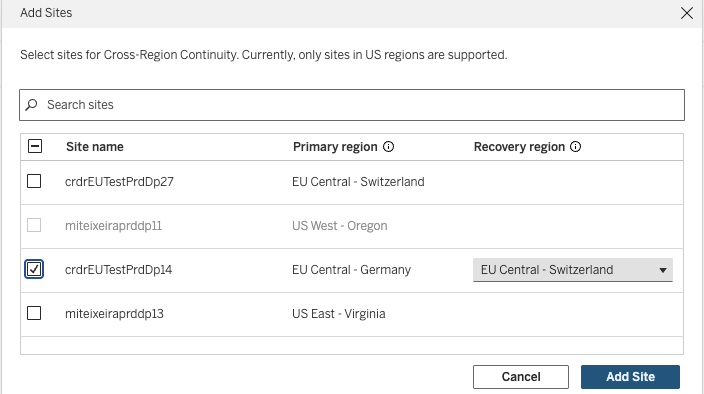
In the Add Sites dialog, search for and select the sites to add.
-
In the Recovery region column, select the region where each site's data is synced. The available regions depend on the site's primary region.
-
Select Add Site.
After you add a site, its status changes to Provisioning while the recovery region is set up. The status then changes to Syncing while the site's data is copied, which can take a few hours. When the sync is complete, the status becomes Active.
Monitor cross-region continuity status
You can monitor your sites in two locations:
-
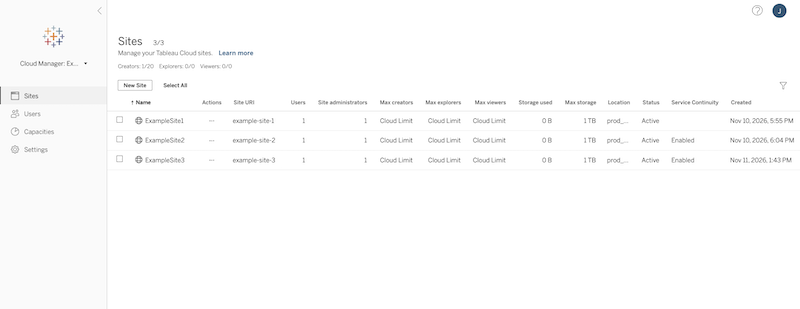
Sites page: The Service continuity column shows whether a site has been added to cross-region continuity (Enabled), hasn't been added or was removed (Disabled), or is running from the recovery region (Continuity mode).
-
Settings > Cross-Region Continuity page: Use this page to view detailed failover statuses, monitor site health, and manage your setup.
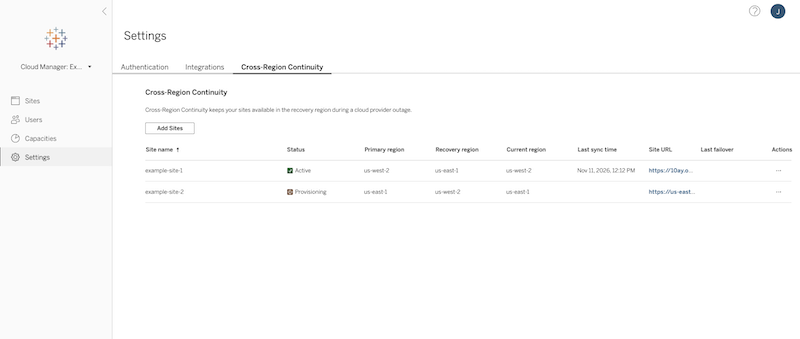
The Cross-Region Continuity page shows the following details for each site:
-
Site name: The name of the site.
-
Status: The site's current status. For descriptions, see Site continuity statuses.
-
Primary region: The site's primary region.
-
Recovery region: The region where the site's data is copied.
-
Current region: The region the site is running from. During a failover, this is the recovery region.
-
Last sync time: The time the site's data was last copied to the recovery region. Changes made after this time might not be available during an outage.
-
Site URL: The URL for accessing the site.
-
Last failover: The time of the site's most recent failover.
Site continuity statuses
Each site on the Cross-Region Continuity page has a status showing where it is in the continuity lifecycle. This status is separate from the site's status on the Sites page, such as active or suspended.
| Status | Description |
| Provisioning | The recovery region is being set up for the site. |
| Provisioning failed | The recovery region couldn't be set up for the site. |
| Syncing | The site's data is being copied to the recovery region. |
| Active | Data is copied to the recovery region about every 2 hours. The site is running in its primary region. |
| Failover in progress | The site is moving to the recovery region. |
| Failover failed | The site couldn't be moved to the recovery region. |
| Continuity mode | The site is running from the recovery region and reflects data as of the last sync. Changes made in this mode are discarded when the site fails back. |
| Failback in progress | The site is returning to the primary region. |
| Failback failed | The site couldn't be returned to the primary region. |
| Removing | The site is being removed from cross-region continuity. |
| Unavailable | The status couldn't be retrieved or isn't valid. |
Remove a site from cross-region continuity
You can remove a site only when its status is Active. To remove a site, use these steps:
-
Sign in to Tableau Cloud Manager as a cloud administrator.
-
Select Settings > Cross-Region Continuity.
-
In the Actions column for the site, select Remove.
-
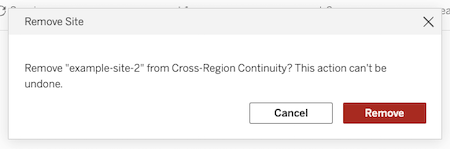
In the Remove Site dialog, confirm that you want to remove the site and select Remove. This action can't be undone.
What happens during a failover
A failover moves a site to its recovery region during a regional outage. A failback returns the site to its primary region when the outage ends. Failover and failback aren't automatic. Tableau starts both, and you can't start them yourself. Affected sites go through three stages:
Failover to the recovery region
When a failover starts, your site's status changes from Active to Failover in progress, and then to Continuity mode. A banner appears on the Cross-Region Continuity page for the affected region.
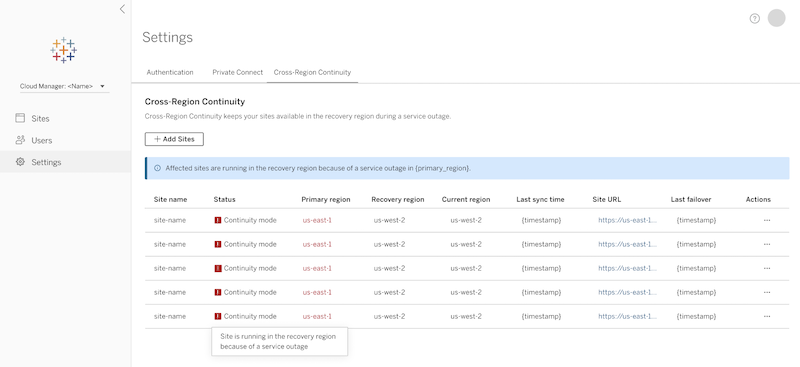
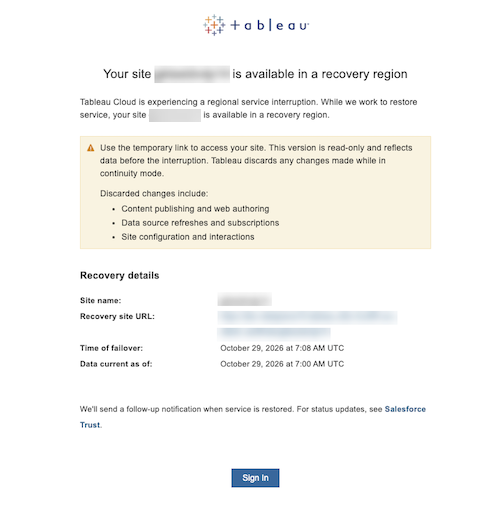
Tableau Cloud sends an email containing the recovery site URL, the time of failover, and the most recent sync time. If you're a cloud administrator, you receive this notification for all affected sites in your tenant. Site administrators and users receive it only for their specific site.
To track updates during an outage, view your pod status or subscribe to notifications on Salesforce Trust.
Operate in continuity mode
Users sign in using the recovery site URL from the email notification. A Service Continuity Mode banner at the top of the page shows that the site is running in the recovery region. The recovery site URL works only while your site is in continuity mode.
Tip: If you can't sign in at the recovery site URL, your browser might still have session data from the original site. Sign out of your current session or use a private browsing window.
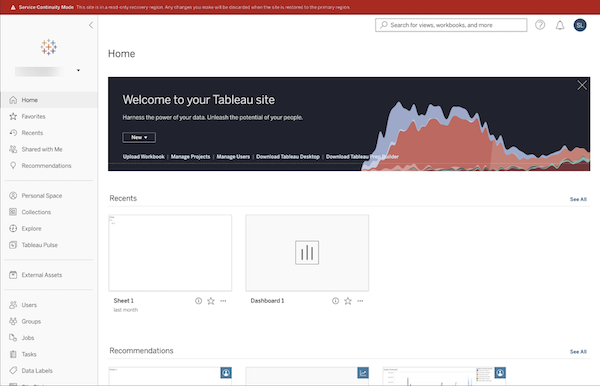
While your site is in continuity mode, it shows data from the last sync before the outage. You and your users can keep working, including creating and sharing content. However, changes aren't saved to your primary region. When the site fails back, changes from these activities are discarded:
-
Content publishing and web authoring
-
Extract refreshes and scheduled subscriptions
-
Site configuration changes and user interactions
-
TCM changes, such as adding users, changing authentication types, and renaming the site
After a failover, search results might be incomplete while content is reindexed. A site that's suspended when a failover occurs is no longer suspended in the recovery region.
Failback to the primary region
When a failback starts, your site's status changes from Continuity mode to Failback in progress, and then back to Active.
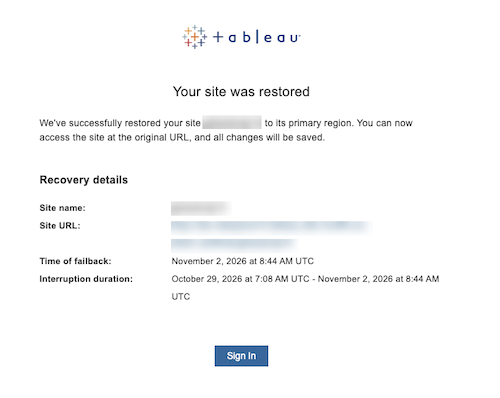
Tableau Cloud sends a confirmation email with the time of failback and the total outage duration. Users return to the original site URL, and the Service Continuity Mode banner no longer appears.
Connected features and tools
Some connected features and tools need action from you before an outage, or after a failover or failback. Review how each feature is affected, and share the steps with the users who manage it.
-
Custom domain: If your site uses a custom domain, users keep the same URL and bookmarks after a failover. Certificates for both regions are managed automatically. If your site doesn't use a custom domain, users must sign in with the recovery site URL from the email notification. For more information, see Use a Custom Domain with Tableau Cloud.
-
Custom Views: Custom views remain accessible during a failover, but saved filter changes, settings, and mark selections may not be retained. When opened in Continuity mode, custom views may load without those saved states applied.
-
Embedded content and API scripts: After a failover, embedded content and REST API scripts must use the recovery site URL. After a failback, they must use the original site URL again. If your site uses a custom domain, the URL stays the same and no change is needed.
-
Private Connect: Private Connect resources are tied to an AWS region. We recommend setting up resources in the recovery region before an outage. You must also complete some steps after a failover and after a failback to keep your private connections working.
-
Outbound: Before an outage, we recommend that you set up an endpoint service and an endpoint in the recovery region, and data replication if needed. After a failover, create endpoints on the recovery site if you haven't already. After a failback, delete the recovery endpoints or redirect them to your primary endpoint service. For more information, see Outbound Private Connect.
-
Inbound: Before an outage, create endpoints in the recovery region. After a failover, create a private hosted zone for the recovery site URL, and then create a DNS record that points the URL to the endpoint. For more information, see DNS for Inbound Private Connect and Inbound Private Connect.
-
-
Tableau Bridge: Tableau Bridge loses its connection when the site moves to the recovery region. To restore scheduled refreshes, users must sign back in. Most clients connect through online.tableau.com and don't need a URL change. Clients configured with a pod-specific URL must be updated to use the recovery site URL. For more information, see Use Tableau Bridge.
-
Tableau Prep Builder: After a failover, Tableau Prep Builder doesn't automatically sign in to the recovery site. Users must sign in with the recovery site URL. After a failback, users must sign in again with the original site URL.
-
Tableau Prep Conductor: After a failover, flows that use OAuth connections fail when run on Tableau Cloud. To fix this, users must re-authenticate and republish the flows with embedded credentials, using Tableau Prep Builder or Tableau Prep on the web (web authoring). For more information, see OAuth Connections and Tableau Prep on the Web in Tableau Cloud Help, and Publish a Flow to Tableau Server or Tableau Cloud in Tableau Prep Help.
-
System for Cross-domain Identity Management (SCIM): The SCIM Base URL is specific to each site and region, so it changes after a failover and again after a failback. After each change, update the Base URL in your identity provider's settings. Your existing secret remains valid, so you don't need to generate a new one. For more information, see SCIM.
-
Data sources and firewalls: Live connections and extract refreshes work on the recovery site only if your data is reachable from the recovery region. Complete these steps outside of Tableau, or contact your database or network administrator for help.
-
Firewall allowlists: Before an outage, allow the Tableau Cloud IP addresses for the recovery region on any firewall-restricted databases. For more information, see Keep Data Fresh.
-
Cross-region database replication: If your database is in the same region as your site, use a cross-region replica, such as Snowflake replication. If the database is unavailable during an outage, point your data sources to the replica.
-
-
Automated publishing: Scripts and deployment pipelines that publish content to your site automatically, such as a continuous integration and continuous delivery (CI/CD) pipeline, might fail while your site is in continuity mode. Pause these processes during an outage, because content published in continuity mode is discarded when the site fails back.
-
Admin Insights - After failover, the Admin Insights project and its data sources are available on the recovery site and show data as of the last sync. During continuity mode, Admin Insights data doesn’t refresh, so activity on the recovery site isn’t shown. After failback, Admin Insights shows the same data it had on the primary site before the failover, and it starts refreshing again.
-
Activity Log: Activity Log events that occur while your site is in continuity mode aren't captured.
-
Tableau Pulse - Pulse metric definitions, metrics, and followers are copied to the recovery site and stay available after failover. Users open Pulse from the recovery URL, unless you use a custom domain. Metrics keep updating as long as their data sources are reachable and refreshing in the recovery region. Any metrics, definitions, or follows that users create or change during continuity mode are discarded on failback.