
Migrate Rserve Connections from TCP to HTTP
Beginning
- Access to model calculations(Link opens in a new window) and the Function Explorer(Link opens in a new window).
Note: Rserve-by-TCP doesn't have a deprecation date, but eventually Rserve will be available only over HTTP. If you migrate now, you get the benefits of Rserve-by-HTTP right away and you won't need to take action later.
The migration is a one-time process:
- Step 1: Set up an HTTP endpoint for Rserve
- Step 2: Replace or update the Rserve connection - Either:
- Create a new Rserve HTTP connection. This approach allows you to leave the existing connection alone while you create and test a new Rserve connection. You will need to edit your workbooks one by one to complete the migration.
- Edit your existing Rserve connection so it uses HTTP. This approach is faster, but automatically updates the connection for all workbooks using it.
- (Optional) Step 3: Update workbook connections - If you choose to create a new Rserve HTTP connection, you will need to update any workbooks using the old connection so they use the new connection.
For general information about configuring analytics extensions, see
Impact on users
Once Rserve connections are migrated to HTTP there should be little or no impact on authors and business users. The analytics experience doesn't change, other than potentially faster performance and access to the Function Explorer. Existing content will continue to work after its connection is updated.
Step 1: Set up an HTTP endpoint for Rserve
To migrate Rserve from TCP to HTTP, you replace your existing Rserve connection with one that works through the Analytics Extensions API. You can use any method, as long as it implements the Analytics Extensions API, specifically the /info and /evaluate endpoints.
We recommend RestRserve(Link opens in a new window), which is the method described in this section. Alternatively, you can use Posit Connect(Link opens in a new window) (previously RStudio Connect) as your R integration, but that method requires changes to existing workbooks.
For an example using RestRserve, see the Example - RestRserve(Link opens in a new window) on the Tableau Analytics Extensions API GitHub site.
Step 2: Replace or update the Rserve connection
New Rserve connections use HTTP by default. To switch a connection between HTTP and TCP, click Use TCP or Use HTTP in the upper-right corner of the Rserve connection dialog. The option will change depending on what type of connection is configured. For default HTTP connections, the dialog looks like this:
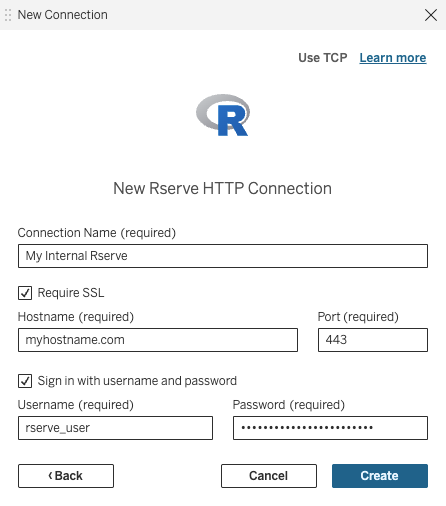
Switch to an HTTP Rserve connection in one of two ways:
-
Create a new connection: Create a new connection with Rserve as the connection type (this will default to HTTP) while leaving your existing TCP connection in place.
Using this approach you can create and test the new connection with one or more workbooks to make sure it works as expected. You then need to switch each workbook from the old connection to the new one. Once all workbooks are updated to use the new connection, you can delete the old connection.
For details,
or
-
Edit the connection in place: Edit the existing Rserve connection and change it from TCP to HTTP by clicking Use HTTP.
Using this approach you can quickly update all workbooks by editing the existing Rserve connection. Once edited, any workbook using the existing connection will automatically be using the updated connection with HTTP.
Important: Editing the connection in place immediately switches every workbook using the connection to HTTP. Because of this you should test your new HTTP endpoint using a single workbook before you edit the existing connection.
Step 3: Update workbook connections
If you created a new connection instead of editing the existing connection, after testing to ensure the new HTTP connection works, update the connection in each workbook that uses the Rserve analytics extension. You can either do this manually following the steps in in the Desktop and Web Authoring Help, or automate the process using the Update analytics extension for workbook(Link opens in a new window) API method.