
Get Started with Tableau Studio
Tableau Studio brings the power of Tableau Agent to the Tableau Desktop experience you know and love. Designed to streamline your authoring experience, this guide introduces key capabilities across the platform: navigating the redesigned Start Page, seamlessly connecting to your data sources, and leveraging AI assistance with Tableau Agent. You'll also learn how to optimize your visual workspace using Canvas Mode and extend functionality with custom Workspace Extensions and Packages.
General requirements
Make sure that you complete the following requirements:
-
Download and install Tableau Desktop version 2026.3.1, and make sure that your product key is provisioned for Tableau Studio.
-
Verify that you have Creator or higher site permissions.
-
Turn on Tableau Agent for your site.
-
Sign in to a Tableau site that has an eligible license:
-
Tableau Cloud: Requires Tableau Cloud+, Tableau+, or a Tableau Cloud new site trial. For more information, see Turn on AI for Tableau in Your Cloud Site.
-
Tableau Server (version 2026.3 and later): Requires Tableau Server+. If using a custom gateway with OAuth authentication, Tableau Agent in Dashboards is not available. For more information, see Turn on AI in Your Tableau Server Site.
-
Note: If you don’t have Tableau+, Tableau Cloud+, or Tableau Server+, you can use a Tableau Cloud new site trial to explore Tableau Studio. The trial creates a new Tableau Cloud site that’s separate from any existing site. To start, sign up for a trial. Then sign in to the trial site as a site administrator and turn on Tableau Agent. For more information, see Turn on AI in Tableau with a Tableau Cloud new site trial.
If you’re a Tableau+, Tableau Cloud+, or Tableau Server+ user, you don’t need a trial. Download the latest version of Tableau Desktop and sign in with your credentials. Site administrators must turn on the Tableau Agent site setting for all users.
Start page
When you open Tableau Studio, the new start page appears first. It’s built around the Tableau Agent field, so you can use natural language to work with your data. Tableau Agent uses your connected data source to suggest, build, and apply changes directly in Tableau Studio.
The start page reflects Tableau’s chat-first approach to authoring. It leaves no features behind, and experienced users can go straight to the full Tableau interface they already know.
If you prefer the previous layout, you can use the classic start page instead. Select Help, and then Always use Classic Start Page.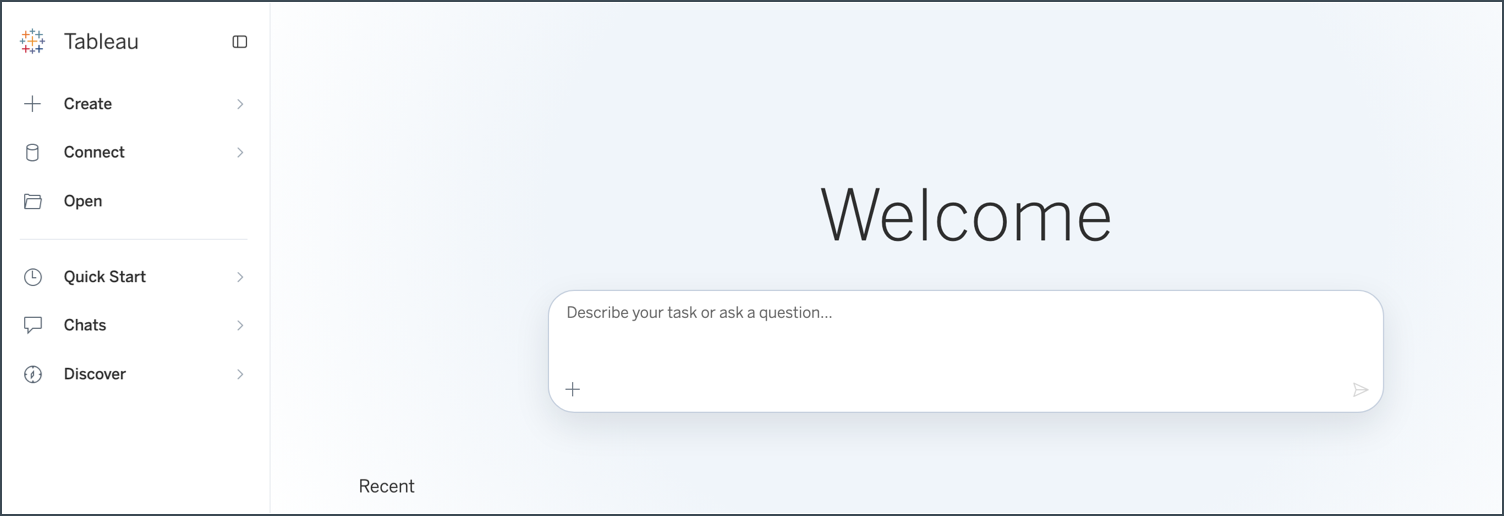
Connect to data
When you select Connect in Tableau Studio, the new Connect menu is a refreshed, simplified design that streamlines getting to your data. Instead of a long list of file types and servers, you choose from four clear options: Published Data Sources, Files, Connectors, and Saved Data Sources. Each option includes an icon and a short description, so you can see what it does before you select it.
The Connect menu reflects the same goal as the rest of the new experience: a fresh way to start that leaves no capabilities behind. The file types and databases you used to find on the Connect pane are still available. You can now reach them through Files and Connectors, where you can search the full list of sources.
From there, you can connect to data published on your server, open a file on your computer, connect to a server or cloud database, or reconnect to a data source you saved. After you’re connected, Tableau Agent can work with your data source right away.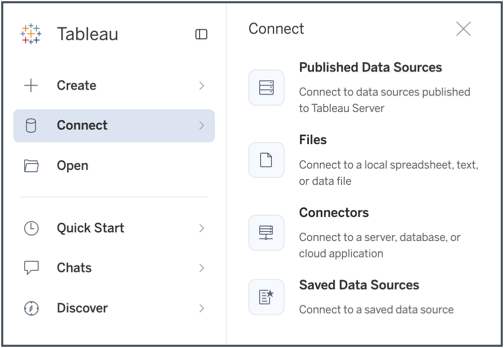
Tableau Agent
Tableau Agent is an AI-powered authoring assistant built into Tableau Studio that lets you create and refine visualizations through natural conversation. Instead of manually configuring charts, calculated fields, and worksheets from scratch, you describe what you want — and Tableau Agent handles the rest, drawing on your connected data source to suggest, build, and apply changes directly in Tableau Studio.
Use Studio Skills
Tableau Studio Skills are curated capabilities and reusable analytics workflows that expand Tableau Agent's functionality while retaining core authoring controls, including the main workspace, chat interface, and slash commands. They provide step-by-step guidance for specialized tasks—such as auditing data quality, troubleshooting calculations, or reviewing workbooks—without requiring you to open or run them manually.
While similar to general agent assistance, Tableau Skills differ in the following ways:
-
Execution reliability: General assistance relies on broad model knowledge and open-ended phrasing, whereas installed skills follow tested, step-by-step workflows tailored to specific tasks.
-
Trigger mechanism: General prompts require descriptive explanations, while skills automatically activate via short trigger phrases or slash commands.
-
Source scope: Built-in skills come pre-installed with Tableau Studio, whereas custom skills can be created or downloaded from the Tableau Exchange to fit specialized workflows.
For more information on Skills, see Add Tableau Studio Skills.
Vibe coded extensions
With vibe coding, building a Tableau extension no longer requires developer expertise. You can easily construct extensions simply by describing your requirements in plain language.
Tableau Agent manages scaffolding, reading, patching, validating, and publishing extensions—even to personal spaces. Automatically selecting the appropriate surface and hosting mode, its authoring capabilities support viz, dashboard, and workspace extensions.
Canvas Mode
Canvas Mode expands your visual workspace while retaining core authoring controls, including the main toolbar (undo/redo, presentation, focus, Show Me, and Tableau Agent controls), the data source tab, and the bottom status bar. It hides the data tab, row and column shelves, and the marks, filter, and page cards.
While similar to Presentation Mode, Canvas Mode differs in the following ways:
-
State persistence: Presentation Mode settings are saved in the .twb file and restored upon reopening. Canvas Mode state is not saved, so it resets when the workbook is reopened.
-
Main toolbar visibility: The primary toolbar remains visible in Canvas Mode, whereas Presentation Mode hides it.
-
Data source tab and status bar: Canvas Mode keeps both accessible, while Presentation Mode hides them.
Workspace extensions
Workspace extensions are a type of Tableau extension that runs at the workspace level, so it isn't tied to a single workbook. They add custom side-pane apps to Tableau Studio. They load locally from the My Tableau Repository directory.
-
To add a Workspace Extension, download the extension's .trex file and place it in your Tableau Repository.
-
In Tableau Studio, select Extensions, and then Add Workspace Extension.
-
In the dialog that appears, navigate to your Tableau Repository and select the extension you wish to load.
Note: Workspace extensions can't be packaged in a .twbx. If one arrives in an imported package, use Import Package.
For more information on Workspace Extensions, see Use Workspace Extensions.
Packages
Packages allow you to bundle web content alongside extensions—such as workspace, viz, and dashboard extensions—directly inside a .twbx file to simplify sharing.
To customize packages, you can edit them using Tableau Agent or unpack the source files to modify them within an IDE.
Access and distribution are managed through permissions: standard workbook permissions govern usage, publishing requires publish rights, and site administrators control overall availability, popup behavior, and download sources.
Administrators can enable packages on a site by navigating to Settings and choosing Packages.