
Step 1: Activate your Salesforce Org
As of October 14, 2025, Data Cloud has been rebranded to Data 360. During this transition, you may see references to Data Cloud in our application and documentation. While the name is new, the functionality and content remains unchanged.
Who does this step? Salesforce Admin
About this step: Tableau Next and Data Cloud require a Salesforce org as their foundation. An organization (org) is a deployment of Salesforce that has a defined set of licensed users. Your org includes all of your data and applications. All anticipated Tableau Next users must exist in this Salesforce org.
Activate your Salesforce org
Why: A Salesforce org is a company's unique, virtual space on the Salesforce cloud platform that contains all of its Salesforce data, apps, and customizations. It’s the centralized, secure hub for a company’s business operations on Salesforce, including Tableau Next, Data Cloud, and Agentforce.
After your purchase is complete, Salesforce emails an invitation to activate your new Salesforce org if you don’t already have one. Your activation provisions your Salesforce org and finalizes the creation of a Salesforce Org user.
Log in to your org through the link provided in your login information email.
Learn more: Activate your Salesforce org(Link opens in a new window).
Verify Data Cloud is provisioned
Why: Data Cloud is a pre-requisite for Tableau Next. Data Cloud is automatically provisioned as soon as a Data Cloud license is added to your Salesforce org, except in Developer orgs. Tableau Semantics is available for Data Cloud customers and its capabilities are available in both Data Cloud and Tableau Next.
-
At the top of any Salesforce page, select the gear icon
 and select Setup.
 -
Enter Data Cloud in the Quick Find box and find Data Cloud Setup.
-
If that option appears, you have Data Cloud and Tableau Semantics.
Note: Developer orgs need to manually enable Data Cloud by selecting Get Started in Data Cloud Setup. For more information, see Turn on Data Cloud(Link opens in a new window).
Add users in your Salesforce org
Why: If you need to add more users besides yourself to Tableau Next, you need to add them to your Salesforce org. Users must already exist in Salesforce before you can grant them access to Data Cloud and Tableau Next. This step only adds users to your org; permission sets for Tableau Next and Data Cloud are covered in Step 3.
Add users to your Salesforce Org:
-
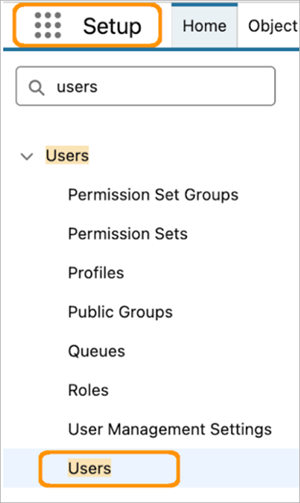
In the Quick Find box in Setup, type in and select Users.
-
Select New User to add a single user, or select Add Multiple Users.
-
Select a User License and a profile to associate with the users you’re creating. Tableau Next users need at least the Identity user license, but another license can be used if applicable.
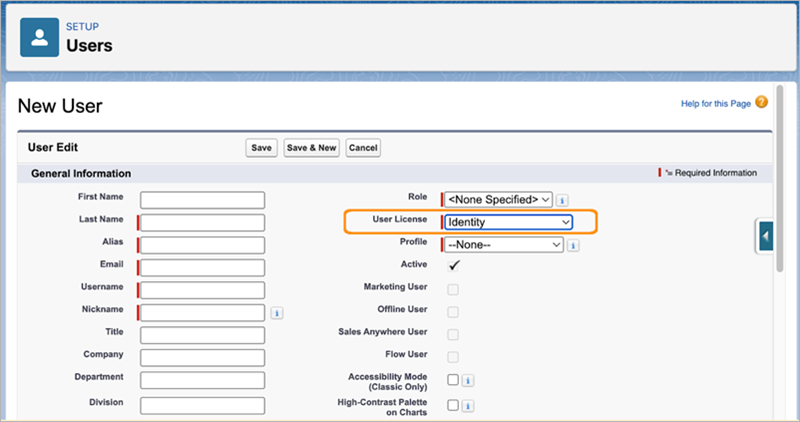
-
Select Generate passwords and notify users via email to send a login name and temporary password to each user.
-
Save your work.
For more information on adding Salesforce users, see Guidelines for Adding Users(Link opens in a new window), Add a Single User(Link opens in a new window), and Add Multiple Users(Link opens in a new window).
Assign Data Cloud Architect and Tableau Next Admin Permissions to a User
Why: Data Cloud Architect can enable and configure Data Cloud. The architect can be the same user as the Salesforce Admin or a different user. If you’re the Salesforce Admin (with a System Admin profile), you don't need a Data Cloud standard permission set to access Data Cloud Setup. The Tableau Next Admin can enable and configure Tableau Next. The Tableau Next Admin can be the same user as the Data Cloud Architect (recommended), the Salesforce Admin, or a different user.
-
Assign Data Cloud Architect and Tableau Next Admin permissions to the user or users who will set up Data Cloud and Tableau Next and assign users permissions.
-
From Setup, in the Quick Find box, type in and select Users.
-
Add new users or edit an existing user.
-
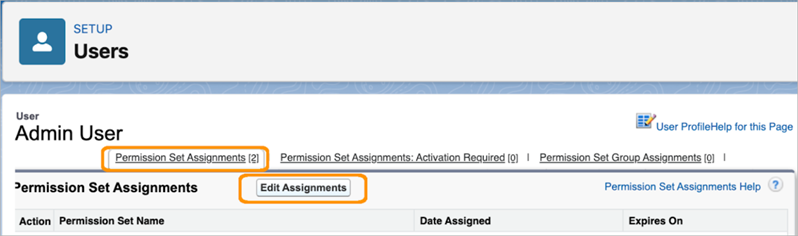
Select a user and click Permission Set Assignments.
-
Click Edit Assignments.
-
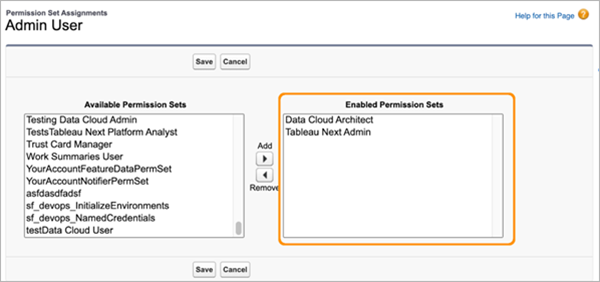
Select the Data Cloud Architect permission set and click Add.
-
Select the Tableau Next Admin permission set and click Add.
-
Save your changes.
For more information on the available permission sets for Tableau Next, see Tableau Next Permission Sets and Licenses(Link opens in a new window) and Assign a User a Tableau Next Permission Set(Link opens in a new window). For more information about Data Cloud Architect permissions, see Data Cloud Standard Permission Sets(Link opens in a new window).
You’re done!
Congratulations! You now have a working Salesforce org with Data Cloud and Tableau Semantics, and an admin for Tableau Next! Continue to the next step to Configure Data Cloud and enable Tableau Next.
Continue to Step 2: Configure Data Cloud and Enable Tableau Next