
Access Tableau Content in Google Workspace
The Tableau add-on for Google Workspace provides secure access to your Tableau content from within Google Docs, Google Slides, and Google Sheets. You can embed Tableau views and Pulse metrics as images in your documents and presentations, import live data from Tableau Cloud into Google Sheets, and export data from Google Sheets to Tableau Cloud for analysis.
For the Tableau add-on to be available in Google Workspace, your Google Workspace admin must add the Tableau add-on to an allow list. For information about installing the Tableau add-on as an admin, see Set Up the Tableau Add-on for Google Workspace.
Minimum requirements
| Feature | Tableau Cloud | Tableau Server minimum version |
|---|---|---|
| Embed Tableau images in Google Docs and Slides | Supported | 2023.1 or later |
| Use custom views with Google Sheets | Supported | 2024.3 or later (REST API 3.24) |
| Import data into Google Sheets | Supported | 2026.1 or later. The Import button appears only when a connection is established with Tableau Cloud or Tableau Server version 2026.1 or higher. |
| Publish to Tableau Cloud from Google Sheets | Supported | Not supported on Tableau Server. |
Tableau Server version requirement: The Tableau add-on requires Tableau Server 2024.3 or later for its primary functions.
Specific features within Google Sheets have higher version dependencies:
Data import: This feature uses the VDS API and is only compatible with Tableau Server 2026.1 or later.
Publish to Tableau Cloud: This feature relies on the Explore in Tableau API, which is only available on Tableau Cloud and not supported on Tableau Server.
Use the Tableau add-on in Google Docs and Google Slides
Use the Tableau Add-on to embed Tableau views and Pulse metrics as image snapshots directly in your Google Docs and Google Slides. You can locate assets using a direct URL or by browsing your Tableau site. If your underlying data updates, you can refresh these images to current.
Insert Tableau images
-
Open a Google Doc or Google Slide and click the Tableau icon in the right side panel.
-
Select your Tableau site from the dropdown menu.
-
Use one of these techniques to find the Tableau content you want to embed:
-
URL: Input the direct link for a Pulse metric or Tableau view to generate a preview within the add-on.
-
Search Views: Enter the name of a view to search your site and select the appropriate result for a preview.
-
Search Pulse Metrics: Look up a specific Pulse metric to preview its current trendline before embedding.
-
-
Preview the content, then select the slide or document tab where you want to insert the image.
-
Select Insert. The image adds to your document.
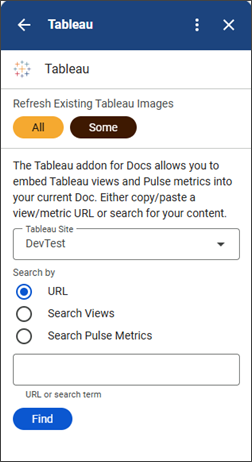
Refresh Tableau images
Images embedded from Tableau are static snapshots. You can refresh these images to ensure they represent the most current data as your underlying source changes.
-
To refresh all Tableau images in your file, select All.
-
To refresh only certain images, select Some.
-
Check the boxes next to the images you want to update and click Refresh.
The Tableau add-on logs the outcome of every refresh as a comment in the file, providing an audit trail. This trail identifies the user who started the refresh, when it occurred, and the status of each image. If your mages don't update properly, consult the Troubleshooting section for solutions to common problems.
View Smartchips and PreviewLinks (Tableau Cloud only)
When you paste a URL linking to a Tableau view or Pulse metric into a Google Doc or Google Slide, it automatically expands into a rich preview that includes a thumbnail image and metadata about the view or metric.
In Google Docs, URLs unfurl as Smartchips — interactive inline previews you can hover over to see more detail.
In Google Slides, URLs unfurl as PreviewLinks. Slides prompts you to replace the URL with a title. This is a one-time replacement — if the view title or metric value changes later, the link title won’t update automatically.
Use the Tableau add-on in Google Sheets
The integration for Google Sheets supports two-way data flow: it allows you to pull information from Tableau views or published data sources into your spreadsheets and also enables the publication of Google Sheets data back to Tableau Cloud.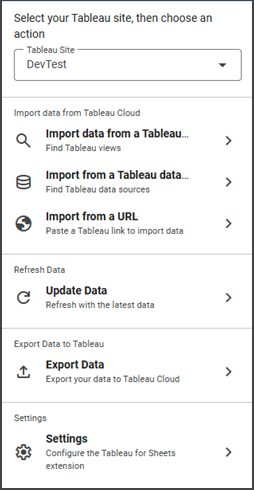
Import data from Tableau
You can import data from a Tableau Published Data Source or from a specific worksheet or view. The experience differs depending on which you choose — Published Data Sources offer a full query builder with field selection and aggregation controls, while worksheet and view imports bring in the data as-is with no additional filtering.
-
Open a Google Sheet and click the Tableau icon in the right side panel.
-
Select your Tableau site from the dropdown menu.
-
Select a data source type.
Import from a worksheet or view
-
Search for a view by name or paste a Tableau URL directly into the URL field.
-
Select a result to see a preview of the data.
-
Specify which rows to import.
Imports are limited to 5 million cells. If the amount of data you've selected exceeds this amount, the data will be truncated at 5 million cells.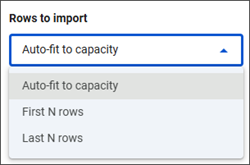
-
Select the dropdown arrow under Rows to import and specify which rows to import.
-
Autofit to capacity: Imports rows until the import reaches the 5 million cell limit.
-
First N rows: Imports the first number of rows, determined by the number you enter into the Number of rows field.
-
Last N rows: Imports the last number of rows, determined by the number you enter into the Number of rows field.
-
-
Select Import Data from Tableau. The full data from that sheet is written as a table into your Sheet. Field selection and aggregation aren’t available for worksheet and view imports.
Note: If you select a dashboard, only the first sheet is available for import. To import a specific sheet within a dashboard, navigate to that worksheet directly instead of selecting the dashboard.
Import from a published data source
-
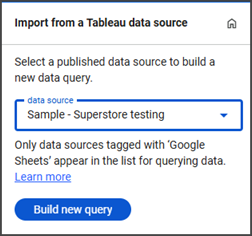
Make sure that the published data source you want to import is tagged with 'GoogleSheets.' Only data sources with this tag will appear in the dropdown list.
For more info on tagging data sources, see Use Tags. -
Select the dropdown arrow to see the data sources available to import.
-
Select the data source to import and select Build new query.
-
Select the fields you want to import using the field selector.
-
Use Select All or Select None to manage your selection quickly.
-
Select Disaggregate Data if you need row-level unaggregated data. (optional).
Note: Disaggregating a large data source may take a while or cause a timeout. After an aggregation is applied, field-level disaggregation is no longer available.
-
Modify field characteristics and aggregation (optional).
-
Select Configure Import.
-
Review your import preview and then select Import Data from Tableau.
Note: Currently, when you import data from a published data source with a large number of fields, you might see this warning: "The list has been truncated to fit the Google add-on card limit." Google Workspace panels can only display a limited number of items at one time. If your data source contains a large number of dimensions and measures (typically 50 or more), the full list can't be displayed. To resolve this issue, create a smaller version of the published data source that includes only the fields you need for your Google Sheets imports.
Import from a URL
-
Paste a Tableau URL into the search box and select Search.
-
Preview content and then select Import Data from Tableau.
-
Select OK.
Refresh Tableau data
-
Select Update Data from the Tableau add-on menu.
-
Check the boxes of the ones you wish to refresh.
-
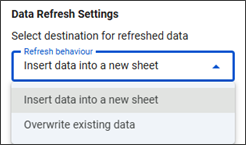
Select your refresh behavior. You can choose to insert refreshed data into a new sheet, or to overwrite existing data.
-
Select Refresh Data.
The Tableau add-on logs the outcome of every refresh as a comment in the file, providing an audit trail. This trail identifies the user who started the refresh, when it occurred, and the status of each refresh. If your data doesn't update properly, consult the Troubleshooting section for solutions to common problems.
Configure data import
Imports are limited to 5 million cells. If the amount of data you've selected exceeds this amount, the data will be truncated at 5 million cells.
If you’re working with large data sets, consider these approaches to stay within the limit:
-
Filter data in Tableau before importing by applying filters at the data source level to reduce row count.
-
Select fewer fields in the query editor.
-
Use aggregation instead of row-level data to reduce cell count.
Data aggregation
By default, the Tableau add-on applies aggregations to measure fields (such as SUM or AVG) based on your selections in the field picker. If you need row-level data, select disaggregation before finalizing your field selections.
Refreshing data in chunks
To handle significant data volumes, the Tableau add-on is designed to refresh data in incremental segments rather than through one large request. This chunking method prevents API timeouts and ensures the reliable delivery of extensive data sets. You can monitor the progress of this operation through the indicator shown in the worksheet comments.
Note: Individual queries are subject to Google’s timeout limits. If a query takes longer than 30 seconds to run, a notification appears and the process continues in the background.
Export Google Sheets data to Tableau Cloud
You can publish data from a Google Sheet to your Tableau Cloud site. The Tableau add-on uses the Explore in Tableau API to open a Tableau Cloud web authoring session pre-loaded with your Sheet data.
-
Open a Google Sheet and select the Tableau add-on from the right side panel.
-
Select your Tableau Cloud site from the dropdown menu.
-
Select Export Data and select the sheets you want to publish.
-
Select Export to Tableau Cloud.
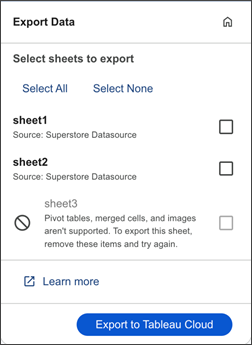
This launches into the Tableau Web Authoring experience using the Google Sheet data as a Tableau published data source.
-
Select Publish to export the data source on to the Tableau Cloud site.
Note: Pivot tables, merged cells, and images from Google Sheets aren't compatible with Tableau Cloud. If your sheet contains incompatible content, you won't be able to export it until the content is removed.
Share Tableau content
When you share a Google Doc, Slide, or Sheet that contains Tableau content, the Tableau images or data are shared as part of the document — just like any other content. However, Tableau permissions aren’t shared along with the document. Each user who wants to refresh Tableau images or re-import data must have the appropriate permissions on the relevant data source or view.
Refresh activity in Docs and Slides is logged as comments on the document. Each refresh comment records the user who triggered it, the timestamp, and the status of each image refresh. This provides an audit trail for understanding when data was last updated and by whom.
Troubleshoot data connections
If you're not seeing all of your data, your query may have exceeded the 5 million cell limit. To successfully pull in your entire data set, try reducing the amount of data imported using the following methods:
-
Apply Tableau filters to limit the imported data volume.
-
Decrease the number of fields selected for the import.
-
Use aggregation to condense the information before you begin the import process.
Large imports are imported in chunks, which can take time for large data sets. If your refresh is running in the background, you can track the status of your refresh in the comments section of your file.
If you're trying to refresh Tableau content that was shared with you, make sure you have the appropriate permissions to access the data in Tableau. The underlying Tableau data permissions always apply, regardless of whether the Google document has been shared.
Published Data Sources must be tagged with "GoogleSheets" in Tableau to appear in the add-on's data source list.
The app can only retrieve data from the first sheet of data within a dashboard. To import data from a specific sheet within a dashboard, we recommend that you go to that worksheet within the workbook and import from there.
If you want to access a custom view, you need to select the Import from a URL functionality.
Smartchips (Google Docs) and PreviewLinks (Google Slides) are only available for Tableau Cloud. They aren't supported for Tableau Server due to a Google Workspace platform limitation that requires a global URL allowlist. If you're using Tableau Cloud and still not seeing smart content, make sure you're pasting a supported Tableau URL.
After you've selected the disaggregation button, the import will be rendered at the row level of detail. To aggregate the row-level data, unselect the Disaggregation button before finalizing your field selections and running the import.
The ability to publish data from Google Sheets to Tableau is only available on Tableau Cloud. This functionality isn't available for Tableau Server.
Custom view support requires Tableau Server REST API version 3.23 or later.
Currently, when you import data from a published data source with a large number of fields, your data may be truncated to fit the Google add-on card limit. Google Workspace panels can only display a limited number of items at one time. If your data source contains a large number of dimensions and measures (typically 50 or more), the full list can't be displayed.
To resolve this issue, create a smaller version of the published data source that includes only the fields you need for your Google Sheets imports.
Pivot tables, merged cells, and images from Google Sheets aren't compatible with Tableau Cloud. If your sheet contains incompatible content, it will be grayed out in the export dialog and you won't be able to export it. Remove any pivot tables, merged cells, or images from the Google Sheet and try again.