
Admin Profiles
The Server Administrator and Site Administrator site roles grant users automatic permissions to various administrative settings but also all content. This means that if a user is made an admin so they can add users to the site or manage groups, they can also access all content on the site. In many settings, this type of access isn't ideal.
Admin Profiles are a way to give a user a specific set of administrative capabilities without giving them universal content access. Each admin profile defines a specific set of capabilities. Users are then assigned to a profile and gain the ability to perform those tasks.
- Admin profile capabilities include user management and group management. They don't include the ability to modify site settings.
- Admin profiles are created and managed by a Tableau Server Admin. Site admins can be authorized to assign users to profiles, but site admins can't edit or create admin profiles.
- Admin profiles don't grant access to content.
Create an admin profile
Creating an admin profile consists of setting up the profile capabilities and adding it to sites. Only a Tableau Server Administrator can create an admin profile.
Open the Admin Profiles page
-
As a Tableau Server Administrator, go to All Sites to access server-level settings.
-
Open the dropdown for the site selector and choose Manage all sites.
-
-
In the left pane, select Admin Profiles.
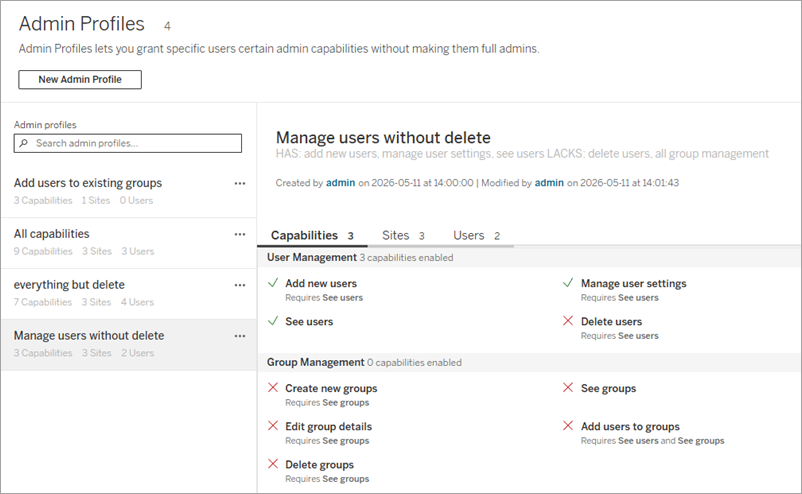
Any existing profiles appear in the Admin profiles list. A pane to the right shows details for the selected profile. A selected profile has three tabs: Capabilities, Sites, and Users.
- The Capabilities tab shows all the capabilities at a glance.
- The Sites tab shows which sites the admin profile is present on, and how many users per site have the profile. Add the profile to existing sites from this tab.
- The Users tab shows which users have the profile. This tab is useful for auditing but users can't be assigned a profile from this tab. Profile assignment happens from the Users page.
Make a new admin profile
-
Click the New Admin Profile button.
-
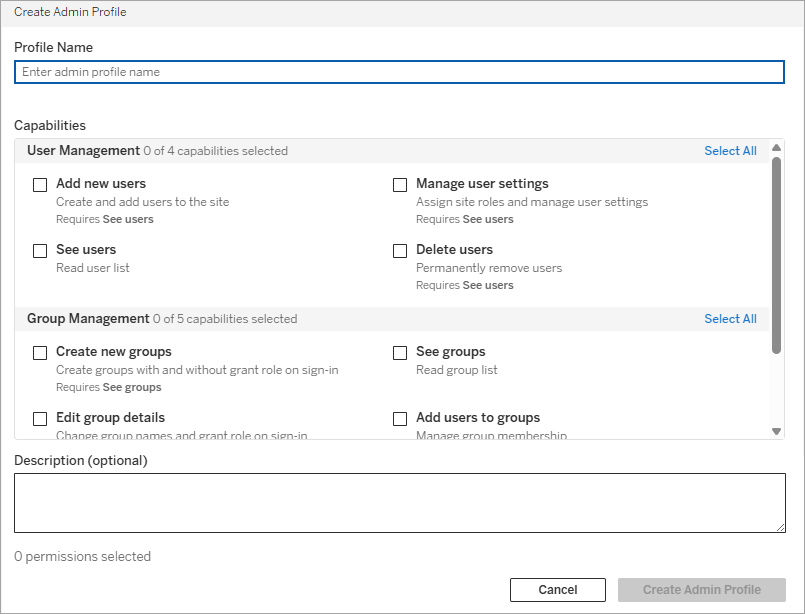
Name the profile.
-
This name appears in a dropdown when assigning the profile to users, so make it descriptive but short.
-
Avoid potentially conflicting names (such as site roles like "Site Admin Creator.")
-
-
Select which Admin profile capabilities the profile should grant.
-
Some capabilities depend on other capabilities. For example, "See users" is required for the capability "Add new users." The help text for each capability describes any dependencies it has. The REST API doesn't have these dependencies.
-
Users can have at most one profile per site.
-
-
(Optional) Add a description that describes the admin profile's purpose.
-
Click the Create Admin Profile button
The profile now exists on the server, but it's not yet available on any sites. The next step is to add the profile to a site and add users.
Add the profile to a site
-
Select the profile from the list of admin profiles.
-
Go to the Sites tab.
-
Click the Assign Admin Profile to Site button.
-
Select the sites that the profile should be available on.
The final step is to assign the profile to users. Because only server admins can access the Admin Profiles page, this step isn't done on the Admin Profiles page. Instead, users are assigned an admin profile from the Users page.
Assign an admin profile to users
To be given an admin profile, a user must have an Explorer or Creator site role. Users can be assigned only one admin profile per site.
Site or Server administrator. Users can be assigned admin profiles at the site level:
-
Go to the Site Users page.
-
Open the action menu (...) for the user
-
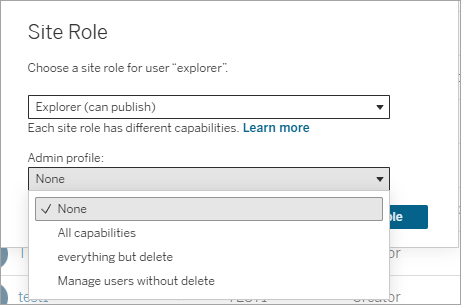
Select Site role…
-
Use the Admin profile dropdown to assign them a profile.
-
To assign a profile that doesn't appear in the dropdown, ask a server admin to make sure the profile has been added to the site.
-
Server administrators only. Users can be assigned admin profiles at the server level:
-
Go to the Server Users page.
-
Open the action menu (...) for the user.
-
Select Site membership…
-
For each site the user belongs to, use the Admin profile dropdown to assign them a profile.
-
Each site's dropdown shows profiles that have been added to that site. To assign a profile that doesn't appear in the dropdown for that site, go back to the section Add the profile to a site and make sure the profile has been added to that site.
-
Manage admin profiles
To manage an admin profile, go to the Admin Profiles page. (All sites > Admin Profiles in the left pane). From there:
-
Edit an admin profile by opening the action menu (...) for the profile and selecting Edit Profile.
-
Delete an admin profile by opening the action menu (...) for the profile and selecting Delete Profile.
-
Remove a profile from a site by selecting the profile and going to its Sites tab. Open the action menu (...) for a site and choose Remove from site.
-
If there are any users assigned to that profile on that site, they lose their admin capabilities.
-
Admin profile capabilities
Unlike groups, which are evaluated in combination to determine effective permissions(Link opens in a new window), a single admin profile defines what a user with that profile can and can't do. Set up each admin profile to exactly describe what capabilities a user with that profile has.
User Management
| Capability | Definition | Notes |
| Add new users | Create and add new users to the site | To be able to add users by importing a file upload, the admin profile must include Manage user settings in addition to Add new users. |
| Manage user settings | Assign site roles and manage user settings | User settings include locale, email address, force password update, and so on. May need to be granted on multiple sites.* |
| See users | See what users exist on the site | See users is required for all other user management capabilities in the UI. It isn't required for the API. |
| Delete users | Permanently remove users |
*When an end user has access to multiple sites, some of their user settings such as email address are shared across sites. For a user with an admin profile to manage these settings, they need to be granted the Manage user settings capability on every site the end user is on.
For example, consider user Leone who is a viewer on Site A and Site B. Rialto is a user with an admin profile that includes Manage user settings on Site A. Rialto won't be able to manage Leone's email address—even on Site A—unless Rialto is given an admin profile on Site B that includes Manage user settings.
Group Management
| Capability | Definition | Notes |
| Create new groups | Create groups with and without grant role on sign-in | |
| See groups | See what groups exist on the site | See groups is required for all other group management capabilities in the UI. It isn't required for the API. |
| Edit group details | Change group names and grant role on sign-in status. | |
| Add users to groups | Manage group membership | Only users with an admin site role can assign an admin site role to another user. |
| Delete groups | Permanently remove groups |