
Analyze Marks on a Map with Drive Time
Starting in Tableau version 2026.2, you can use the Drive Time selection tool to select marks on a map based on travel time from a point. When you click and drag on the map, Tableau creates a drive-time boundary that selects all marks within the driving time you specify.
When to use Drive Time selection
The drive time selection tool works with map visualizations that contain:
-
Geographic coordinates like latitude and longitude.
-
Location-based marks.
-
Standard map layers.
This tool is useful when you want to:
-
Analyze locations within a specific commute time.
-
Understand your service area coverage.
-
Plan sales territories based on how long it takes to drive there.
-
Analyze retail sites based on local driving distances.
Keep the following points in mind when using the tool:
-
Time limit: The maximum travel time is 60 minutes. Because of this, use the tool at a zoom level that shows a city rather than an entire state or country.
-
Road networks: The tool works best with a built environment with roads. To verify that roads exist in your data area, turn on streets in your background map layers.
-
Internet required: You must have an active internet connection to calculate driving boundaries.
How the Drive Time selection tool compares to other selection tools
The unique benefit of Drive Time Selection is that it accounts for actual road networks, one-way streets, and highway restrictions. This provides a more realistic view of travel accessibility than a standard circle tool.
| Selection tool | Rectangle | Radial | Lasso | Drive Time |
|---|---|---|---|---|
| Shape | Rectangle | Circle | Freeform path | Drive-time polygon |
| Basis | Visual boundary | Straight-line distance | Visual boundary | Travel time and routing |
| Network required | No | No | No | Yes |
| Extends past view | No | Yes | No | Yes |
Like the Radial tool, the Drive Time selection tool can select marks that extend beyond your current map view. You don't need to zoom out to capture distant marks. If the road network carries the boundary past your screen view, those hidden marks stay selected.
How to use Drive Time selection
Step one: Activate the selection tool
You can activate Drive Time Selection in two ways:
-
From the toolbar: On the map toolbar, select the Drive Time selection icon.
 This tool appears next to the Rectangular, Radial, and Lasso selection tools.
 -
Keyboard shortcut: Press T.
Step two: Select an area on the map
-
Single selection: Click and hold your starting point on the map, then drag outward to expand the drive-time boundary. The further you drag, the larger the driving time area becomes. Release the mouse button to finish. Tableau selects all marks inside the boundary.
-
Multi-selection: To add to an existing selection, press and hold Ctrl (Windows) or Cmd (Mac) while you drag.
-
Clear a selection: Select a blank area on the map, or switch to a different selection tool to select a new set of marks.
As you work with the tool, you will notice the following behavioral cues:
-
The cursor changes shape to show you are in Drive Time Selection mode.
-
A colored boundary line displays the drive-time area as you drag.
-
The boundary updates dynamically in real time to show intermediate calculations while you adjust the drag distance.
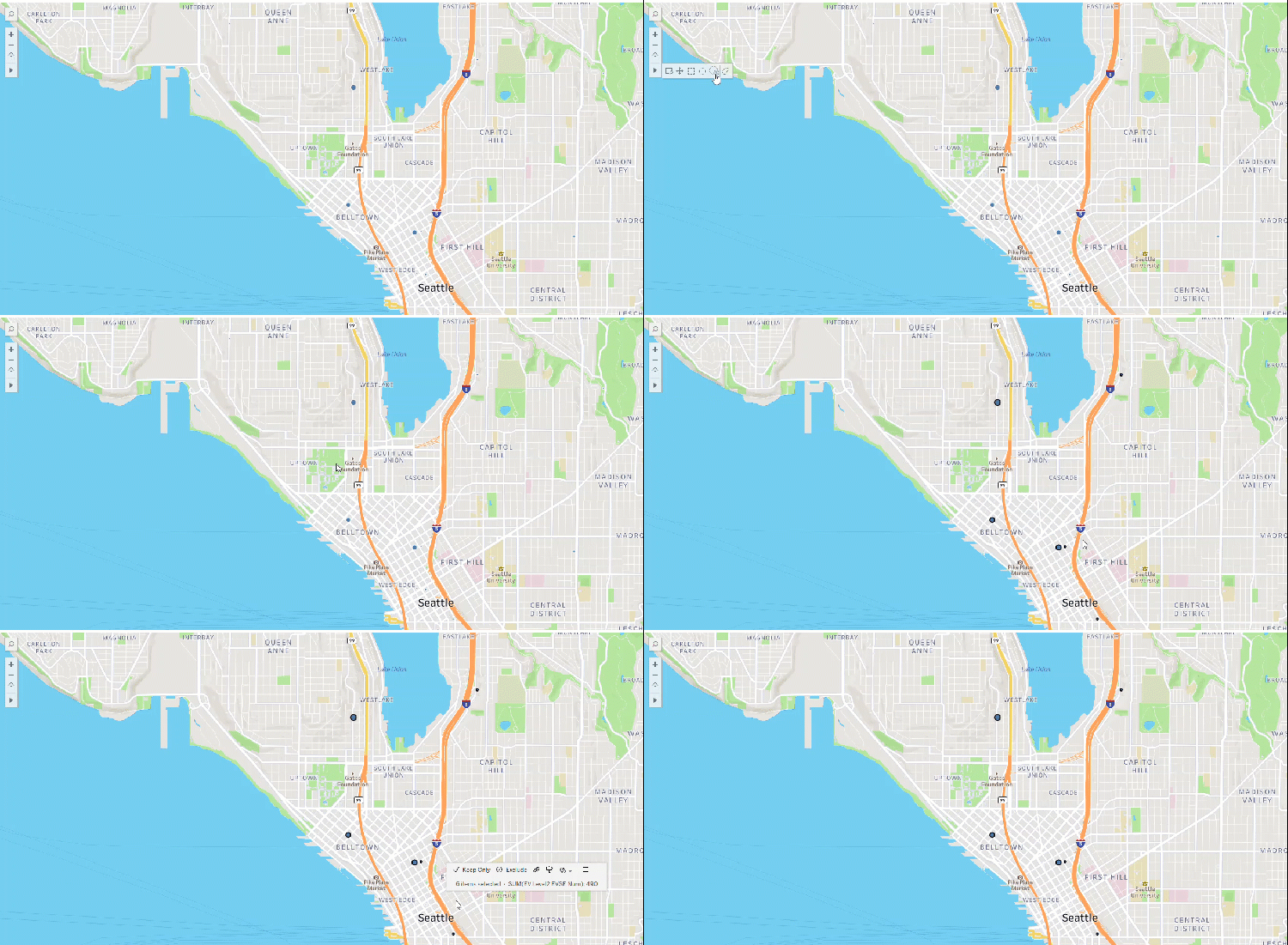
Calculating how many EV level 3 charging stations there are within a 10-minute drive time of downtown Seattle.
Troubleshoot Drive Time selection
Drive Time Selection relies on live map routing services to calculate precise boundaries. If you lose network access, the tool icon becomes gray and inactive. Tableau displays the message: "Network access required for Drive Time selection." If you encounter this issue, check your internet connection or verify with your administrator that your network firewall allows access to Mapbox and required map APIs.
Check your active internet connection. Make sure your network firewalls allow traffic to map routing services.
Drive-time calculations depend on real-world road systems. One-way streets, highways, turning restrictions, and local road layouts shape the final boundary.
Verify that your map contains active marks inside the boundary area and that your underlying data includes valid geographic coordinates. You can also try to drag your cursor further outward to expand the Drive Time radius.
Sometimes, the keyboard shortcut may not work as expected. If the shortcut fails, select the icon directly from the map toolbar.