
Composable Data Sources
As of Tableau 2026.2, you can compose published data sources (PDS) and extend and publish a published data source.
-
Compose published data sources: Relate multiple published data sources in your data model and use the combined result as a new, publishable data source, leaving the original data sources intact.
-
Publish an extended published data source: Connect to a published data source, override semantic definitions (such as renaming fields or creating new calculations), then publish the modified version as a new data source.
Bookshop example
Consider two existing PDSes, (1) Bookshop Sales and (2) Book, Edition, and Publisher. Imagine each bookseller has their own sales data source Bookshop Sales and the Book, Edition, and Publisher data source is centrally maintained by the warehouse.
If you're a local bookseller, you can connect to both your store's Bookshop Sales and the warehouse's Book, Edition, and Publisher. On the Data Source tab, the UI puts containers around each individual data source for clarity. You can build a relationship across the data sources to create the new, composed data source Detailed Sales.
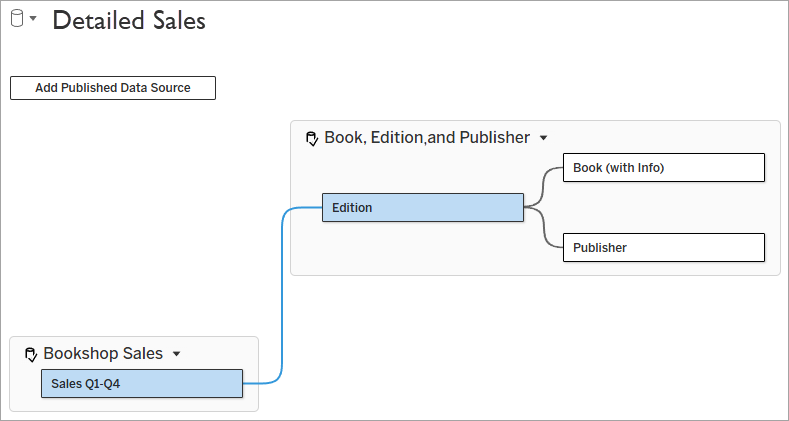
If you open a worksheet and change the semantics in the Data pane, you're extending the Detailed Sales data source. For example, you could create a calculated field for Sale Price with the formula [Price]*(1-[Discount]). Price lives in the Edition table of Book, Edition, and Publisher and Discount lives in the Sales union of Bookshop Sales.
To share your new data source with others at your store, you can publish your work as an extended, composed data source of its own.
Publish an extended published data source
In Tableau 2026.2 and later, you can publish your semantic overrides on a PDS rather than keeping those modifications in a workbook as a local data source.
-
Connect to a published data source.
-
Make your modifications, such as adding calculations, making sets, or changing field names and properties. In the context of extending data sources, these are called overrides.
-
Publish your version of the data source, using a unique and descriptive name.
Compose published data sources
In Tableau 2026.2 and later, multiple published data sources can be related to each other in a workbook or the scratchpad of a new published data source. Better still, the data model containing multiple PDSes can be published as a new published data source.
-
Connect to a published data source.
-
From the canvas on the Data Source tab, use the Add Published Data Source button to connect to additional published data sources.
Note: Composability is only supported between published data sources. You can't compose a local flat file directly to a published data source. Publish the flat file first then use it as a published data source.
-
Set up a relationship between tables across the data sources.
-
(Optional) Extend the data sources as desired, such as changing field names or creating calculations.
-
(Optional) Publish with a unique and descriptive name.
Inheritance and data freshness
Connection type
When using a published data source in an extended or composed data source, think carefully about whether you want to connect live or take an extract.
In the previous example, if the warehouse added new titles to the Book, Edition, and Publisher data source, when those titles appear in your Detailed Sales data source depends on the connection type.
-
If you connected live, as the warehouse updates its data source, Detailed Sales reflects the new data each time it's reloaded or refreshed.
-
If you took an extract, Detailed Sales contains an extract of Book, Edition, and Publisher, not a new extract of its underlying data source. When looking for the new titles in Detailed Sales, consider when Book, Edition, and Publisher gets refreshed.
When you extend a data source, you're layering changes onto the underlying PDS, not changing the source directly. If you override attributes of the underlying data source—such as renaming a field—an update to the underlying data source doesn't undo your changes.
At any time, you can open the menu for your local data source and review the overrides you made.
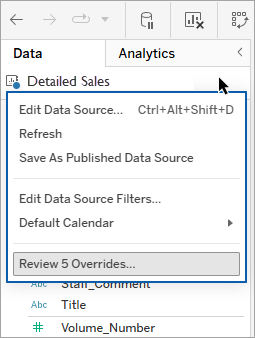
The Review Overrides dialog gives a summary of what's been added, changed, or otherwise modified. You can select multiple overrides to reset with a single click.
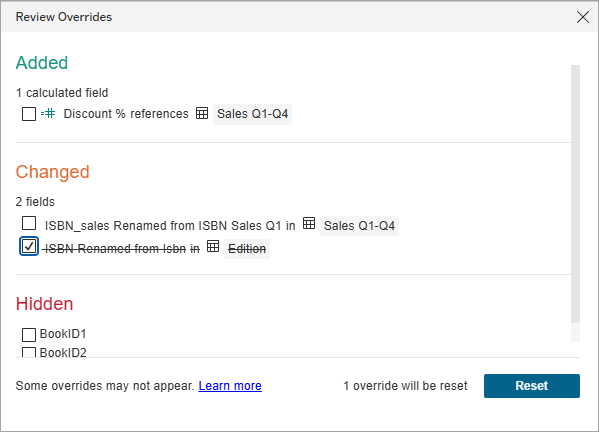
In Tableau 2026.2, the Review Overrides dialog tracks:
- Renaming fields
- Creating calculations
- Creating groups
- Creating bins
- Combining fields
- Hiding fields
Note: The roadmap includes plans for additional overrides such as modifying field descriptions; changes between discrete/continuous and measure/dimension; data type; fiscal year start; and defaults for sort, color, and shape. These aren't tracked in the overrides as of Tableau 2026.2, however.
Terminology details
A published data source (PDS) is a data source published to Tableau Cloud or Tableau Server as a standalone asset. PDSes can be built on the web or published from Tableau Desktop. Published data sources can be both extended and composed. Extending refers to overriding (that is, adding or changing) semantic definitions. Composing involves combining multiple published data sources.
A local data source is the data source as it exists in a workbook. A local data source can be a flat file, a direct or virtual connection to a database, or a connection to a published data source. Extending happens inside the local data source. The new behavior in Tableau 2026.2 is the ability to publish the extended data source rather than keeping the extensions locally in the workbook as a local data source.
A composed data source is a data source whose data model contains two or more published data sources. Prior to Tableau 2026.2, combining published data sources was only possible on a sheet by sheet basis with data blending—which could only be published as a workbook and not a PDS. In Tableau 2026.2 and later, you can relate published data sources to each other and publish the result as a new data source.
Access to data sources
When working with extended or composed data sources, you must have access to all the data sources involved. There's no partial access to a composed data source. That is, if a user doesn't have permission to connect to the Bookshop Sales data source from the previous example, that user is completely unable to access the Detailed Sales composed data source.
Dependency limits
Composed or extended data sources build on other published data sources, forming a chain of dependencies. To protect performance and reliability, Tableau limits how many published data sources a composed or extended data source can depend on and how deeply they can nest.
-
Total dependencies: The number of published data sources in a data source's upstream lineage (itself plus every PDS it builds on).
- If the same published data source appears multiple times in the dependency chain of PDSes, Tableau counts it once for each use. A data source that reuses the same upstream PDS in several places can reach the total dependencies limit even when the number of distinct PDSes is smaller.
-
Nesting depth: The length of the longest chain of nested sources. A data source that builds directly on one published data source has a depth of 1.
| Limit | Default | Error message | Checked when |
| Data sources per composed data source | 500 | Too many data sources in this composed data source. | You open or use a composed data source, including loading a workbook using the data source. |
| Total dependencies | 100 | Publishing a data source with more than 100 PDS dependencies isn't supported. | You publish a composed data source. |
| Nesting depth | 20 | Publishing a data source with more than 20 nested layers isn't supported. | You publish a composed data source. |
It's important to note that these dependency limits are engineering safeguards and most data sources will never reach them.
Why publish limits are lower than overall limits
Keeping publish limits (100 / 20) lower than the overall limit (500) prevents errors if an upstream source adds its own dependencies later. This buffer helps keep your downstream sources keep working even when upstream complexities occur.
Limitations on composed published data sources
Extracts
In Tableau 2026.2, only live composed data sources can be published as a standalone data source asset. However, you can publish a workbook containing an extracted, composed data source. The extract must be taken in Tableau Desktop as extracting composed data sources on the web is unavailable in this release. These extract limitations are on the roadmap to be lifted in future releases.
Data connections
Not all data connectors support composed data sources. Composed data sources are not available in cubes or connections using stored procedures. Additionally, a prerequisite for supporting composable data sources, a connector must support cross-database joins, left joins, and Level of Detail expressions (LODs).
Specific incompatible data connectors include:
- Firebird 3
- Google Analytics
- JSON (because JSON is only supported as a single table)
- Microsoft SQL Server Analysis Services
- Odata
- Oracle Essbase
- Salesforce
- SAP NetWeaver Business Warehouse (BW)
- Splunk
- Teradata OLAP Connector
Cross-database joins in composed data sources
In Tableau 2026.2, cross-database joins are used in composed data sources in all cases, even if the PDSes use the same connections and database credentials. Performance optimizations to avoid this behavior in identical connections are on the roadmap for future releases.
Embedded credentials
In the first release of composable data sources (June and July 2026), embedded credentials aren't retained for published data sources in composed data sources. Instead, users are prompted for the database username and password despite the underlying data source's embedded credentials. This issue is resolved in Tableau Cloud 2026.2.5 and later, and in the Tableau Server and Tableau Desktop 2026.2.1 maintenance release and later.