Configure External OAuth for Impala
Starting in Tableau 2025.3 for Tableau Desktop and Tableau Server, and 2026.1 for Tableau Cloud, you can use OAuth 2.0/OIDC to federate identity from an external identity provider to Impala.
Depending on the identity provider, there are different steps needed to configure the integration. This is a high-level overview.
Configure IDP on Impala
For information on configuring your IdP on Impala, see Configuring OAuth Authentication(Link opens in a new window) in the Cloudera documentation.
Configure the IDP
-
Create OAuth clients on the IDP for Tableau Desktop, and Tableau Server or Tableau Cloud. The Tableau Desktopclient should enable
PKCE(Link opens in a new window)and usehttp://localhostredirects. -
Create the Tableau OAuth config files. For details on how to do this, see OAuth Configuration and Usage(Link opens in a new window) on GitHub(Link opens in a new window), and examples here(Link opens in a new window). We welcome examples for other IDPs.
-
Be sure to prefix the Tableau OAuth config IDs with "
custom_".Note: OAuth config IDs have a maximum limit of 36 characters. IDs longer than this may not generate an error, but will not work.
-
If your IDP supports dynamic localhost port then disable
OAUTH_CAP_FIXED_PORT_IN_CALLBACK_URL. If your IDP does not support this, make sure to add several localhost callback URLs to the allowlist in the config file and on the IDP.
-
-
Install the new Tableau OAuth configuration files in the
OAuthConfigsfolder associated with each application on desktop hosts (Tableau Desktop, Tableau Prep Builder, Tableau Bridge), and on each Tableau Server and Tableau Cloud site that will be using OAuth, via the site settings page. For more details, see Custom OAuth Configs on Tableau Desktop(Link opens in a new window) and Site Level OAuth Clients(Link opens in a new window).
Connect to Impala
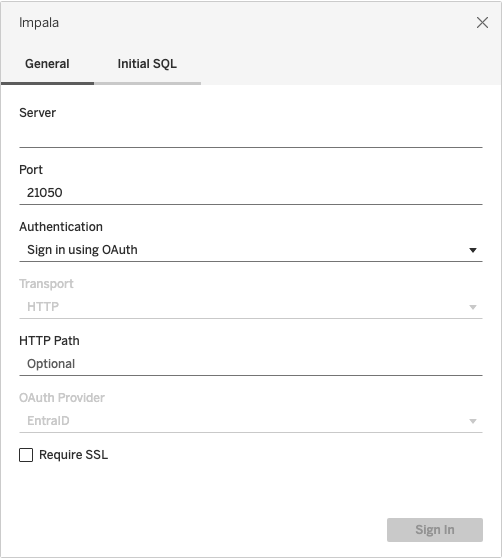
The user must select Sign in using OAuth, and select the OAuth Provider installed earlier.