
Create Spatial Calculations and Joins
Supported in Tableau Prep Builder version 2026.1 and later and on the web.
Today, you can connect to spatial files and spatial data sources in Tableau Prep Builder, and Tableau Prep on the web. Now, starting in version 2026.1, you can also clean and transform your spatial data using spatial functions for calculated fields. You can also create spatial joins in the Join step. This enables you to perform complex spatial tasks in Tableau Prep, making spatial data analysis in Tableau more accessible and efficient. For information about which spatial file formats and databases you can connect to, see "Connect to Spatial files and databases" in Connect to Data(Link opens in a new window).
Tableau Prep supports many of the same spatial calculation functions as Tableau Desktop. For example, you can use the MAKEPOINT function to convert latitude and longitude field data into Tableau Point values in text files. Use the VALIDATE function to confirm topological correctness for point, polygon, or line field values. You can even ask Tableau Agent to create these calculations for you.
Joining spatial data in Tableau can consume valuable resources and impact your overall performance. By performing spatial joins in Tableau Prep you can front-load this process and streamline your viz authoring with clean, spatial data before beginning your spatial analysis.
Limitations
While Tableau Prep supports many of the same spatial features and functions as Tableau Desktop, there are a few limitations.
-
Tableau Agent can create spatial calculations, but can't yet create spatial joins.
-
.mif and .shp files can't be uploaded to web authoring.
-
Tableau Prep can't translate Tableau spatial values to WKT (well known text format), GeoJSON, or any other spatial data type format.
-
Advanced spatial processing like removing holes from polygons or converting polygons to polylines isn't supported by this feature.
-
Spatial joins in Tableau Prep only support joining on spatial field types. To join spatial data with non-spatial data like longitude and latitude fields in a text file, create a calculated field using the spatial functions for that data first. For example, use the MAKEPOINT spatial function to convert latitude and longitude field data to a point field.
-
Flows that include spatial data can only be output to .hyper files or as a published data source. Other output types aren’t currently supported.
-
Spatial unions can be performed in calculated fields using the UNION spatial function (Tableau Prep version 2026.3 and later), but direct spatial unions in the Union step are not currently supported.
Create spatial calculations
You can use a Spatial function to convert longitude and latitude fields, or other fields that represent a location (like a ZIP code, or country name) into spatial field types. Tableau Prep supports the following spatial functions. For more information about these functions and syntax, see Spatial Functions(Link opens in a new window) in the Tableau Desktop and Web Authoring help.
| Function | Syntax | When to use this |
| AREA | AREA(Spatial Polygon, 'units')
|
Calculating land value Example: Determine the total acreage of a real estate parcel to calculate price-per-square-foot. |
| BUFFER | BUFFER(Spatial point, distance, 'units')
|
Trade area analysis Example: Create a 10-mile "catchment area" around a new store location to identify which customers live within driving distance. |
| DIFFERENCE | DIFFERENCE(Spatial, Spatial)
|
Excluding zones Example: Take a sales territory polygon and "cut out" a protected forest area or a competitor's zone to find the true taxable area. |
| DISTANCE | DISTANCE(SpatialPoint1, SpatialPoint2, 'units')
|
Delivery optimization Example: Calculate how far a warehouse is from a shipping hub to flag any shipments that exceed a "local" shipping rate. |
| INTERSECTION | INTERSECTION (spatial, spatial)
|
Finding shared space Example: Identify the specific overlapping area where two different wildlife habitats meet to study species interaction. |
| INTERSECTS | INTERSECTS (geometry1, geometry2)
|
Filtering data Example: Returns True or False. Use this as a filter to keep only the store locations that fall inside specific "High Growth" school districts. |
| LENGTH | LENGTH (geometry,'units')
|
Infrastructure planning Example: Measure the total mileage of a fiber-optic cable route to estimate the cost of materials for a network expansion. |
| MAKELINE | MAKELINE(SpatialPoint1, SpatialPoint2)
|
Logistics routing Example: Create the shortened distance between an airport of origin and a destination to visualize global flight paths. |
| MAKEPOINT | MAKEPOINT(latitude, longitude, [SRID])
|
Geocoding raw data Example: Turn a spreadsheet of latitude and longitude coordinates into actual geographic points that Tableau can map. |
| OUTLINE | OUTLINE(spatial polygon)
|
Highlighting boundaries Example: Extract the border of a complex city shape to create a clean "perimeter" line for a map overlay. |
| SHAPETYPE | SHAPETYPE(geometry)
|
Auditing data Example: Identify if a spatial column contains Points, Lines, or Polygons to ensure your data set is consistent before joining it with other data. |
| SYMDIFFERENCE | SYMDIFFERENCE(spatial, spatial)
|
Change detection Example: Compare a map of a flood zone from 2020 and 2024 to find only the areas that were flooded in one year but not both. |
| PARSE_WKT (version 2026.3 and later) | PARSE_WKT(wkt_string) |
Converting a Well-Known Text (WKT) string representation into a valid spatial geometry object. Example: Convert boundary coordinates for daily vehicle GPS logs in a .csv file into a spatial object. |
| UNION (version 2026.3 and later) |
UNION(geometry1, geometry2) OR UNION(UNION(geometry1, geometry2),geometry3) |
Combining two spatial geometries into a single merged spatial geometry object. To combine three or more spatial geometries, nest the function. Example: Merge separate territory polygon fields into one continuous geometry to get a unified outer boundary, eliminating interior duplicate boundaries so you can run downstream spatial joins or calculate total coverage area. |
| VALIDATE | VALIDATE(spatial geometry)
|
Data cleaning Example: Check if points, linestrings, and polygons (like zip code, city, state, etc.) are valid or broken. Use this to filter out corrupt shapes that might crash your flow. This calculation can take some time to run. |
Create a calculated field for spatial data
-
Connect to a data source that includes spatial data.
-
In the Profile pane toolbar click Create Calculated Field, or in a profile card or data grid, click the More options
 menu and select Create Calculated Field > Custom Calculation.
 -
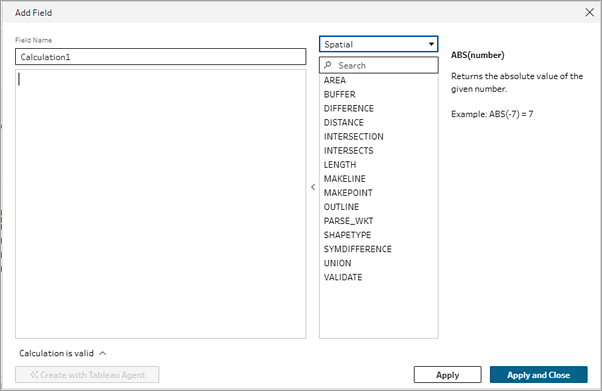
In the Calculation editor, enter a name for your calculation, and in the Reference field drop-down menu, select Spatial.
-
Select the spatial function that you want to calculate, then enter your expression.
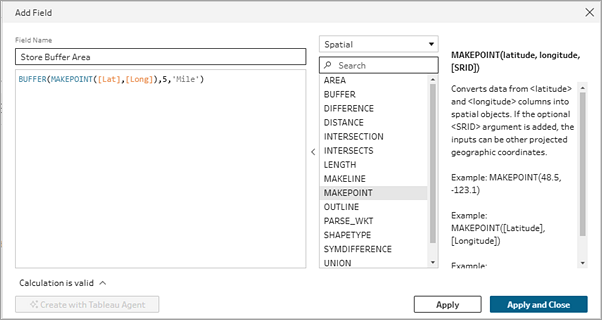
For example, if you have a file that includes latitude and longitude values and you want to calculate the number of people that live within 5 miles of a store, you can create a calculated field using the BUFFER function and the syntax shown below.
Create spatial joins
You perform joins on spatial data in the Join step just like any other join type. When your data sources include spatial data, where the fields that are assigned a geospatial data type  , you can now see a new operator in the join clause for Intersects. For spatial joins, Tableau Prep supports the same join functionality that exists today as well as some additional functionality. For more information about joining data in Tableau Prep, see Join your data(Link opens in a new window).
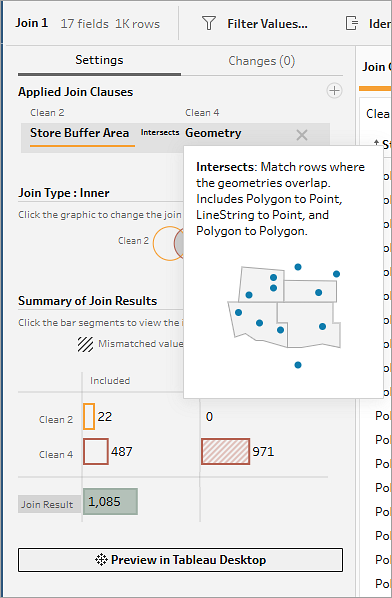
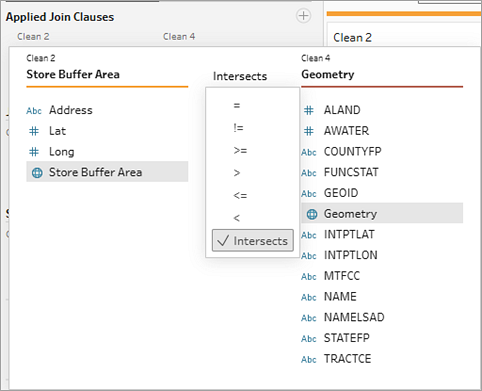
When Tableau Prep identifies geospatial fields in our data sets, by default it will apply an intersects join type to matching fields. Any additional geospatial field matches are shown in the Join Clause Recommendations section that you can add by clicking on them.
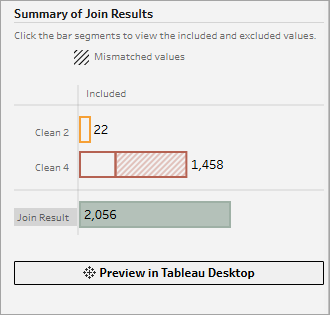
For spatial joins you can hover over the Intersects operator to see a visual tooltip about the join. Check your results in Tableau Desktop by clicking the Preview in Tableau Desktop button that appears in the Summary of Join Results section.
You can only join on spatial field types. If you need to join non-spatial data with spatial data, you can create a calculated field for the non-spatial data (such as longitude or latitude fields) using one of the spatial functions, then create the join.
Supported spatial joins include:
-
Point to point
-
Point to line
-
Point to polygon
-
Line to line
-
Line to polygon
-
Polygon to polygon
Which join type do I need?
The join type you select will depend on the goal of your visualization.
-
Inner join: Select this join type to filter both data sets and visualize only geometries that the data sets have in common.
-
Left or right join: Select this join type to filter data from one data source and visualize all geometries from the other data source plus the points they have in common.
-
Outer join: Select this join type to visualize all geometries from both data sources.
Spatial joins support all join types in Tableau Prep. For more information on Join types, see Join your data(Link opens in a new window).
Join spatial data
To create a spatial join, do the following:
-
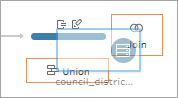
Add at least two tables to the Flow pane that include spatial data, then select and drag the related table to the other table until the Join option displays. This creates a new Join step in the flow.
-
In the Join step Settings tab, review the Applied Join Clauses. By default, Tableau Prep creates a join clause using the Intersects operator for matching geospatial fields. Edit the join clause by clicking on the fields or operator. Hover over the Intersects operator to see a visual tooltip about the join.
-
In the Join Types section, click in the ven diagram to change the join type.
-
In the Summary of Join Results section, see the number of fields included and excluded as a result of the join type and join conditions. In the Join Clauses pane, you can see the values in each field in the join clause. The values that don't meet the criteria for the join clause are displayed in red text. You can also click Preview in Desktop to test your results in Tableau.
-
In the Join Clause Recommendations section, you can view and add any recommended join clause matches to the Applied Join Clauses list.