
Optimize Flow Performance
To get the best performance from Tableau Prep Builder and Tableau Prep Conductor, you can optimize how queries are pushed down to your underlying data sources and structure your flows to minimize unnecessary data processing.
Use Performance Settings for Query Optimization
Supported in Tableau Prep Builder and Tableau Server version 2026.3 and later
Tableau Prep includes query optimization and collation settings designed to maximize the amount of data sent to the database when processing a flow, keeping processing inside native data connectors and reducing the amount of data transferred locally into the Hyper engine.
To configure Performance Settings for your flow:
-
In Tableau Prep Builder, open the flow you want to optimize.
-
From the tool bar, click Help > Settings and Performance > Performance Settings.
-
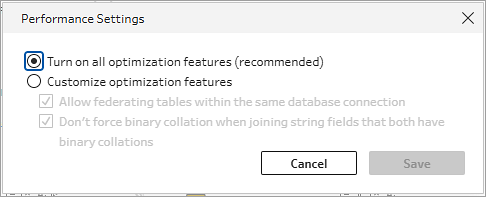
In the Performance Settings dialog, select from the following options:
-
Turn on all optimization features (recommended): Enabled by default. This option automatically applies all recommended values.
-
Customize optimization features: Select this option to manually adjust individual optimization behaviors:
-
Allow federating tables within the same database connection: Controls connection reuse. When enabled, Tableau Prep attempts to send queries referencing multiple tables from the same database connection to the database. Sending the query o the database avoids materializing the tables into Hyper.
-
Don’t force binary collation when joining string fields that both have binary collations: Prevents Tableau Prep from unnecessarily casting join clauses to binary collation when both sides share binary collation. Preserving native collation maintains source database indexes and avoids forcing data materialization into Hyper.
-
-
When to adjust performance settings
-
Complex queries: If a query is extremely complex (for example, intermediate joins and unpivots that multiply row counts significantly before a final pivot), pushing execution to the source database may perform worse than executing it in Hyper. In these cases, select Customize optimization features and turn off Allow federating tables within the same database connection.
-
Legacy drivers and join errors: If an older ODBC driver incorrectly reports binary collation when field collations actually differ, join operations may fail when forced binary collation is turned off. If you encounter join errors on string fields, customize your settings or update your database ODBC drivers.
Best practices for fast flow processing
In addition to configuring Query performance settings, follow these best practices to ensure your flows run efficiently.
Optimize the Input step early
-
Remove columns early: Clear the check box next to unused fields directly inside the Input step to exclude them. Dropping unnecessary fields early prevents Tableau Prep from spending memory and processing power downstream.
-
Filter rows early: Apply filters directly in the Input step rather than waiting for a Clean step. This stops extra rows from entering the processing pipeline.
-
Use relative date filters: Apply relative date filters (such as "Last 12 Months") directly in input tables when historical data is not required.
Manage data sampling during authoring
-
Limit preview rows: Use data sampling in the Input step when designing flows to maintain interactive speed without experiencing lag.
-
Understand sample limits: The default sample is capped at 1 million rows, but decreases as column count increases. Dropping unused fields keeps your sample size larger and more representative.
Optimize interactive authoring and refresh rates
-
Pause interactive updates: Click the Pause button in the toolbar to freeze interactive data grid updates when making structural edits to large flows.
-
Use Incremental Refresh: Configure an Incremental Refresh on your outputs so Tableau Prep processes only new or updated rows during scheduled runs rather than reloading full data sets.
Select fast output formats
-
Export to Hyper extracts: When outputting data to files, select the Tableau Hyper (.hyper) extract format instead of .csv. Hyper files process and write exponentially faster than text files.