
Use Viewer Controlled Themes
Starting in Tableau Cloud version 2026.2, you can customize your viewing experience in Tableau Cloud by changing your viewer theme. You can switch the toolbar and navigation areas—also known as the chrome—to a dark theme.
At this time, the visualization (viz) area continues to appear in the default light theme. This includes elements like sheet tabs, cards, headers, axes, and the chart background.
Theme availability
Viewer controlled themes are currently available in viewing mode only. The dark theme isn't yet available when you build or edit visualizations. When you enter authoring mode, the interface automatically switches back to the default light theme. The interface re-enters your chosen dark theme as soon as you leave authoring mode.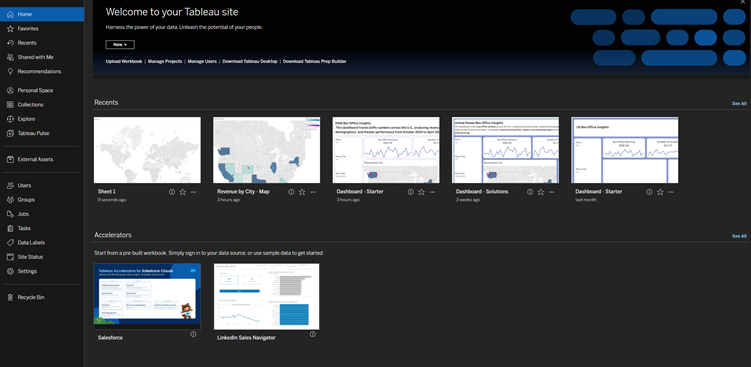
Change your viewer theme
To change your theme setting, open your account settings page.
-
Go to your user settings page.
-
Scroll down to the Accessibility section.
-
Under Theme, select Dark.
The interface updates the toolbar and navigation areas to use the dark theme. To switch back at any time, repeat these steps and select Default/Light.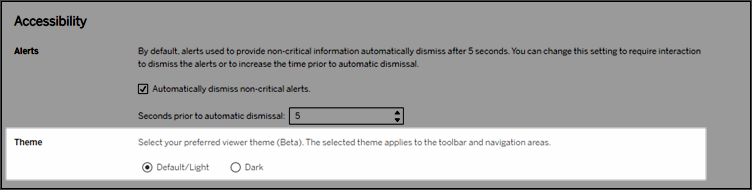
Note: Changing your viewer theme only affects your personal account view. Your selection won't change the experience for any other users who view the same visualizations.