
Manage Routing Rules
Routing rules determine which Tableau Bridge pool handles traffic for specific domains and, optionally, the Tableau project it belongs to.
Note: Routing rules replace the private network allowlist and provide domain- and project-based routing. Existing allowlist entries become Allow routing rules assigned to the same pools, so you don't have to create them again.
Prerequisites
-
Create at least one non-default pool before creating an Allow rule.
-
Identify the target domains (for example, myco.com, *.myco.com, 172.16.0.0).
Note: Tableau-owned domains like *.tableau.com are not supported.
Rule Conditions
Each routing rule consists of three configurable parameters:
| Condition | Description | Required |
| Rule Type | Allow routes matching traffic to a specific pool. Block prevents Bridge from routing traffic that matches the rule. Block rules are not assigned a pool. Rules must be unique. | Yes |
| Domain | The domain name or IP address the rule applies to. | Yes |
|
Project |
One or more Tableau projects (including nested sub projects) to scope the rule to. If you leave it blank, the rule applies to the domain across all projects. |
Optional |
Note: Each rule combination must be unique. Project-level conditions only apply to resources published from Tableau Desktop or Tableau Prep. Web-authored content is evaluated by domain only.
Pools and routing rules
Bridge Pools distribute live queries and extract refreshes across the Bridge clients assigned to them. Routing rules decide which pool a given query goes to: when a query matches a rule's domain (and project, if specified), Bridge routes it to that rule's pool instead of falling back to the default pool.
Note: Create your target pools before setting up routing rules. An Allow rule requires at least one non-default pool to receive traffic.
Create a routing rule
-
From your site's Settings page, go to the Routing Rules section.
-
Click + Add Routing Rule.
-
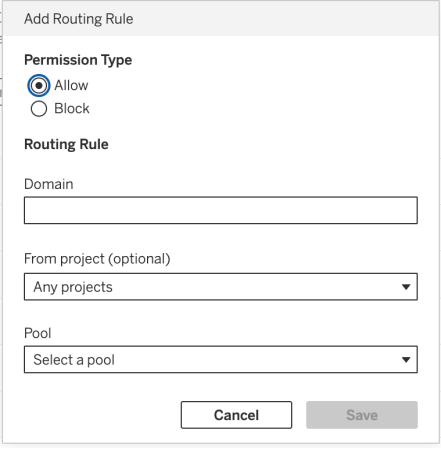
For Rule Type, select Allow or Block.
-
In Rule Details, enter the domain that the rule matches in Domain.
-
(Optional) Under Project, select one or more projects to scope the rule to. Use the search box, or expand a project and select specific subprojects or folders.
To apply the rule to the domain regardless of project, leave Project blank.
-
If you selected Allow, select the Pool that handles matching traffic.
-
Click Save.
If a new rule duplicates an existing one, it won't be saved. A warning icon appears on the rule until it is made unique.
Note: Project-based conditions currently apply only to Bridge-connected resources published from Tableau Desktop or Prep. Content published through web authoring can only be filtered by domain, since project information is not available for web-authored resources at the time a rule is evaluated.
Edit a routing rule
1. In the Routing Rules table, find the rule you want to change.
2. In the Actions column, click the edit icon..
3. Update the rule type, domain, project selection, or pool, then click Save.
If the edited rule duplicates an existing one, you cannot save it. The warning icon remains until you make the rule unique..
Delete a routing rule
In the Actions column, click the delete icon next to the rule. You cannot restore deleted rules. Traffic automatically follows the next matching rule or routes to the default pool.
Note: Block rules apply site-wide. There is no way to block a domain for only a subset of projects.
View and organize your routing rules
Use the View by dropdown above the routing rules table to group rules differently. Group rules by:
-
Routing Rules: Shows one row per rule and is the default view.
-
Domains: Groups rules by domain and shows the number of rules for each domain and a shortcut for adding another rule to that domain.
-
Pools: Groups rules by the pool to which they route.
-
Rule Type: Groups rules by Allow or Block.
If a rule includes more than one project, click the ⓘ icon next to the rule to see the full list of projects (and subprojects) it applies to. A warning icon in the Status column indicates that the rule needs attention. For example, a warning icon appears if a project referenced by the rule was deleted from your site. Edit the rule, and then update or remove the affected project.
Migrating from the private network allowlist
Routing rules replace the private network domain allowlist.If you used the allowlist to map domains to pools, your existing entries automatically become Allow routing rules that point to the same pools. You do not need to re-create the entries.
The Default Pool remains available after migration for backward compatibility, but it's no longer the recommended way to manage routing. For more control, create dedicated pools and use routing rules to map them to domains and, optionally, projects.
How project-based routing is determined
When a routing rule includes a project condition, Bridge evaluates the project that contains the queried data source or virtual connection. Bridge doesn’t evaluate the project that contains the workbook or flow consuming the connection. In most cases, the projects are the same. They differ when, for example, a data source belongs to one project but workbooks in other projects use it.
| Content Type | Project used for routing |
| Published Data Sources (PDS) or Virtual Connections (VConns) extract refresh | PDS or VConn project |
| Workbook with a Live Connection to a PDS | PDS project |
| Workbook on VConn (live) | VConn project |
| Workbook → direct DB / File (EDS) | Workbook project |
| Flow on PDS (live) | PDS project |
| Flow on VConn (live) | VConn project |
| Flow → direct DB / File | Flow project |
| PDS with a Live Connection to a VConn | VConn project |
| Composable data source (not in MVP) - PDS2 on PDS1(live) | PDS1 project |
| Workbook on Composable DS(PDS2 on PDS1 Live) | PDS1 project |
| Flow on Composable DS | Not supported |
Impact on shared data sources
If a data source in a shared or central project (for example, "BITeam") is used by workbooks in a different department's project (for example, "Finance"), queries against that data source route based on the shared prbook's project. To route queries from different departments to different pools, publish a copy of the data source in each department’s project instead of sharing one data source across projects.
Limitations
-
Routing rules don’t support composable data sources. The routing behavior of a workbook built on a composable data source is undefined.
-
For web-authored content, routing rules match only by domain. Project-based conditions are not available. (see note).
-
Bulk editing of multiple routing rules at once is not currently supported. For example, changing the domain or pool on several rules simultaneously.