
Configure IP Filters for Tableau Cloud
IP filtering secures your Tableau Cloud site by restricting access to approved IP addresses and ranges. Only users and services connecting from these allowed locations can access your site.
What to expect when using IP filters
Here's what happens when users and services attempt to access a site with IP filtering configured.
What IP filtering affects
IP filtering provides security by checking incoming traffic against the list of approved IP addresses and ranges that you define for the site. Use only routable public IP addresses in this list. Private IP addresses and ranges, such as 10.0.0.0/8, 172.16.0.0/12, or 192.168.0.0/16, won't work and can cause lockouts. This restriction affects all incoming traffic to your site, including:
-
Access through a web browser
-
Tableau Desktop connections
-
REST API calls
-
Embedded views
Backend behavior and exceptions
IP filtering doesn't affect processes that run in the background, such as Tableau Bridge. For example, unapproved Bridge computers continue to work, but their status won't appear on the Bridge settings page.
Sign-in behavior
Signing in to Tableau Cloud works separately from IP filtering.
-
Users can access
www.online.tableau.comeven if their IP address is blocked from a specific site. -
The site picker lists all sites a user belongs to, even if IP filtering restricts access to some of them.
-
Access is denied only when a user or service attempts to connect to a filtered site from an unapproved IP address.
Add IP filters
To add an IP filter to your site, use these steps:
-
Sign in to the Tableau Cloud site as an admin and select Settings.
-
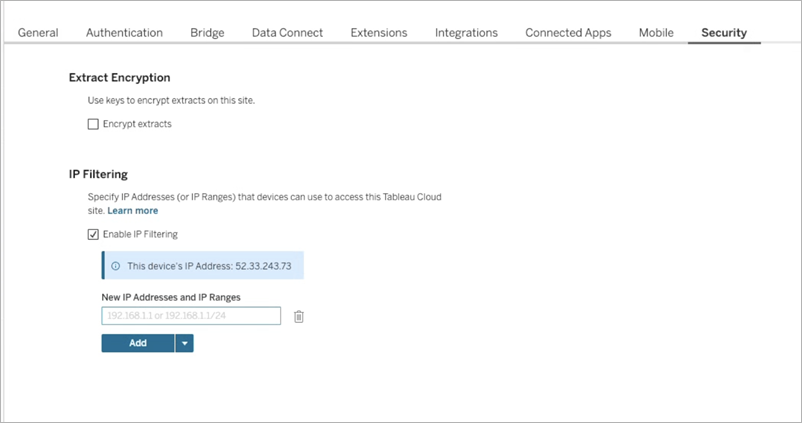
On the Security tab, scroll to IP Filtering.
-
Select the Enable IP Filtering checkbox. An inline message shows your device’s IP address.
-
In the New IP Addresses and IP Ranges section, use one of these options to define the IP addresses and ranges to allow:
-
Individual address: Enter the IP address to allow. To add more addresses, select Add.
-
Bulk editor: Expand the dropdown menu and select IP Address Bulk Editor. In the dialog, enter each IP address or range on a separate line.
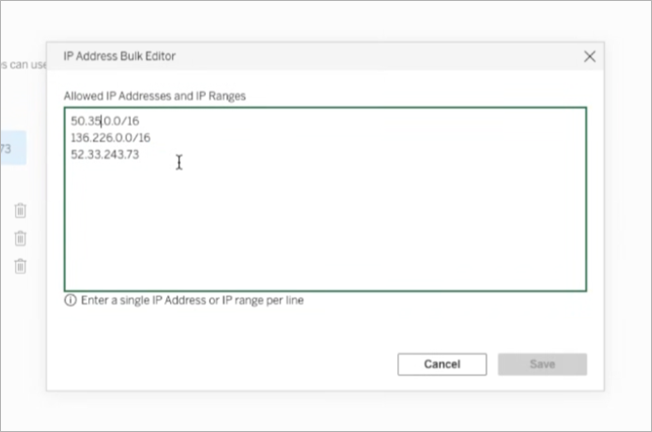
Important: Before saving, verify that you've included your current public IP address. Don't add private addresses and ranges such as 10.0.0.0/8, 172.16.0.0/12, or 192.168.0.0/16. Using these addresses or excluding your current location can lock you out of your site.
-
-
Select Save. Changes take effect within 15 minutes.
Update or remove IP filters
To make changes to IP filters on your site, use these steps:
-
Sign in to the Tableau Cloud site as an admin and select Settings.
-
On the Security tab, scroll to IP Filtering.
-
To update an IP address, use one of these options:
-
Individual address: Select the row to edit it directly.
-
Bulk editor: Expand the dropdown menu and select IP Address Bulk Editor. In the dialog, enter each IP address or range on a separate line.
-
Delete an address: Select the delete icon next to the row.
-
-
Select Save. Changes take effect within 15 minutes.
Turn off IP filtering
Turning off IP filtering permanently deletes the list of IP addresses and ranges you defined. Any licensed user can then sign in to the site, regardless of their IP address. If you plan to use these settings later, copy your allow list before turning off IP filtering.
To turn off IP filtering, use these steps:
-
Sign in to the Tableau Cloud site as an admin and select Settings.
-
On the Security tab, scroll to IP Filtering.
-
(Optional) Copy your list of IP addresses and ranges.
-
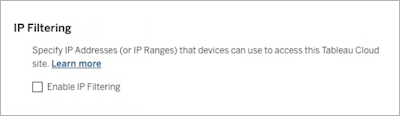
Clear the Enable IP Filtering checkbox.
-
Select Save.
Troubleshooting
Regain site access
If you lose access to your site after configuring IP filters, you can use these options to regain access.
-
Ask another site admin: Contact another site admin who isn’t affected by the IP filter and have them update or remove the filter list.
-
Try a different IP address: Access the site from another device or network that you know is allowed, such as your VPN. If you can sign in, update or remove the IP filter.
If you’re the only site admin and you lose all your access, contact Tableau Support for assistance. Tableau must manually reset or update the IP filters before you can sign in again.