
Author Visualizations with Assistive Technologies
Starting in Tableau 2026.1, you can author and edit visualizations on Tableau Cloud and Tableau Public using only a keyboard. This keyboard-only functionality allows users to create content without a mouse, offering a consistent experience for those who use screen readers or prefer keyboard navigation. Tableau provides announcements as you navigate, ensuring you understand which part of the interface is in focus.
Build a view using your keyboard
You can navigate the Data pane, add fields to the visualization, and rearrange items on shelves using standard keyboard strokes.
Add fields to the worksheet from the Data pane
-
Use the Tab key to move focus to the Data pane.
-
Use the Up and Down Arrow keys to move through the list of fields.
-
To select or unselect a field, press the Spacebar. To select a field and open its context menu, press Enter.
Using the context menu gives you the ability to place the field exactly where you intend on the visualization.
-
From the context menu, select Add to from the menu.
-
Use the Arrow keys to select the location where you want to place the field. As you Arrow through the locations, an orange focus indicator appears on the target areas, such as on the Columns shelf or the Pages card.
-
Press the Spacebar to drop the item in the specified location. Tableau adds the field to the view and updates the visualization immediately.
When the field is dropped on the specified location, the focus returns to the Data pane.
If you'd like to cancel an action or close the context menu without making a selection, press Esc. This will return the focus to the field in the Data pane.
You can also build a visualization using your keyboard by interacting with the Show Me panel. To learn more about building a view with Show Me, see Use Show Me to Start a View.
Configure options for Filters and Marks cards
When you drop a field onto Filters or the Marks card, you need to complete a few more steps.
For Filters:
-
Drop the field onto the Filters card. The filter configuration dialog opens.
-
Use the Tab key to move between sections of the filter dialog (For example, General or Condition).
-
Press Enter to open a section or list of options.
-
Navigate through the available options using the Arrow keys.
-
Press Enter again to select the items you wish to filter.
-
After the filter is configured, press Tab until you reach the desired action button (For example, Reset, Apply, Cancel, or OK).
-
Press Enter to confirm your choice. The filter saves and the dialog closes automatically.
For the Marks card:
-
Drop the desired field on the Marks card.
-
Use the Arrow keys to select the specific visual property for encoding (For example, Color, Size, Label).
-
Press the Spacebar to place the field on that encoding box.
To configure settings for an existing field on the Marks card:
-
Make sure that the relevant card or field is in focus, then press Enter to open its context menu for more visualization options.
-
Use the Tab key to move through the various settings within the menu (For example, in the Color card, navigate through Edit Colors, Opacity, Border, and Halo).
-
With the setting in focus, adjust the value using the Arrow keys. For example, with Opacity in focus, use the Left or Down Arrow keys to decrease the opacity and the Right or Up Arrow keys to increase it.
Interact with fields on the visualization with a keyboard
A field that has been placed on a visualization is often called a pill. You can move them to a different location, copy them to a different location, and remove them from the visualization, but the keyboard strokes are slightly different.
-
Use the Tab key to move through the worksheet until the pill you'd like to interact with is in focus.
-
Press Enter to open the pill's context menu.
-
Use the Arrow keys to navigate to your next action, such as Move to or Copy to, and press Enter again.
-
If you're moving or copying the pill, use the Arrow keys to select the location where you want to place the pill. As you Arrow through the locations, an orange focus indicator appears on the target areas.
-
Press the Spacebar to move or copy the item to the new location.
-
If you're removing a pill from the visualization, use the Arrow keys to navigate to Remove, and press Enter.
The focus remains in place. For example, if you've copied a pill to the Rows shelf, the focus remains on the Rows shelf.
Keyboard controls for authoring
Visualization authoring keystrokes
Use these keyboard controls to build visualizations without a mouse.
| Action | Keystrokes |
|---|---|
| Move the focus forward through the visualization elements | Tab |
| Move the focus backward through the visualization elements | Shift + Tab |
|
Select and open a context menu Expand or collapse a card |
Enter |
| Open context menu | Enter or Shift + F10 |
| Select or unselect an item in the schema | Spacebar |
| Move pill left | Ctrl + Left Arrow |
| Move pill right | Ctrl + Right Arrow |
| Cancel the action and return to the last location | Esc |
Drag-and-drop keystrokes
Use these keyboard controls to drag-and-drop items without a mouse.
| Action | Keystrokes |
|---|---|
| Enter drag-and-drop mode | Press Enter on a destination (for example, Columns) through the context menu |
| Move forward | Right or Down Arrow |
| Move backward | Left or Up Arrow |
| Drop item | Spacebar |
| Cancel | Esc |
Walkthrough: Add a field to the worksheet using a keyboard in three steps
Step one: From the Data pane, use the Arrow keys to navigate to a field, and then press Enter to select it and open its context menu.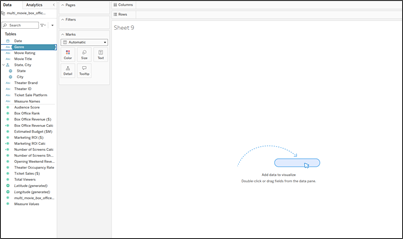
Step two: Navigate the options using the Arrow keys, and then press Enter. For example, move the selection to Add to and press Enter.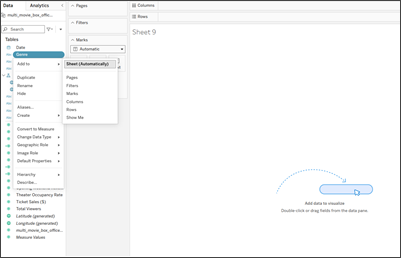
Step three: Use the Arrow keys to navigate to the desired location for the field, such as Sheet (Automatically), and then press Enter.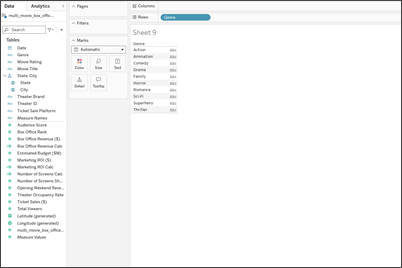
Tableau automatically creates a viz with the field, dropping in the most logical location based on the data type and the current view.
Build a Dashboard using your keyboard
You can add and remove worksheets from the dashboard, navigate through the dashboard, and access context menus on a dashboard. All using standard keyboard strokes.
How keyboard focus works on the dashboard
Tab and Shift+Tab move between the main regions of the dashboard in reading order:
-
Toolbar
-
Left pane (Data pane, Analytics pane, or the Dashboard pane)
-
Dashboard canvas, or on a worksheet, the shelves and Marks card
-
Sheet tabs
Every main region functions as a single Tab stop. Once focused within a region, navigate through its options—like toolbar buttons—using the arrow keys. Pressing Enter or the Spacebar will activate or select the highlighted option, while pressing Esc lets you step back to the previous navigation level.
Select and explore zones on a dashboard
Each item in a dashboard, such as a sheet, filter, legend, or container, is a zone. Zone controls appear only after you select the zone.
-
Press Tab to move focus to a zone. Zones are reached in layout order, with containers before the items inside them.
-
Press the Spacebar to select the zone. The zone menu button and drag handle appear.
-
Press Tab to move from the zone to its drag handle and then to its zone menu button. Use the arrow keys to move between the zone menu buttons.
-
Press Enter to move into the zone and work with its contents, such as a filter control. Use the arrow keys to move within it.
-
Press Esc to leave the zone content. Press Esc again to deselect the zone.
-
To open the zone's context menu from the zone, press Ctrl+Enter.
Add a sheet or object to a dashboard
-
In the left pane, use the arrow keys to navigate to a sheet or dashboard object and press Enter to open its menu.
-
Use the Up and Down arrows to navigate to and then select Add to and press Enter.
-
Choose a destination:
Dashboard (Automatically) places the item using Tableau's automatic placement.
Dashboard Tiled Zones places the worksheet in a specific destination that you choose.
-
If you chose a specific destination, use the arrow keys to move between valid drop positions. Left or Up moves backward, and Right or Down moves forward. Movement does not loop around, and Tableau alerts you upon reaching the start or end position.
-
Press Spacebar or Enter to drop, or press Esc to cancel.
As you move, Tableau announces each position, for example: "B3 to C5. Inside Vertical Container. Left of Sales Chart. Above Profit Table." The position is a cell on a 26 × 26 grid over the dashboard. After a drop, Tableau announces any related legends or controls it added, such as "Ship Mode Filter Control added for Dual Axis."
Focus returns to the item you dragged from, or to the item you moved, after you drop or cancel.
Dashboard authoring keystrokes
| Action | Keystrokes |
|---|---|
| Move between regions, zones, drag handle, and zone menu | Tab or Shift+Tab |
| Select or deselect a zone; activate the focused button | Spacebar |
| Move into zone content; activate the focused button | Enter |
| Leave zone content, then deselect the zone | Esc |
| Move within zone content or between zone menu buttons | Arrow keys |
| Open the zone context menu | Ctrl+Enter |
Walkthrough: Add a worksheet to a dashboard using a keyboard in three steps
Step one: From the Data pane, use the arrow keys to navigate to a worksheet, and then press Enter to select it and open its context menu.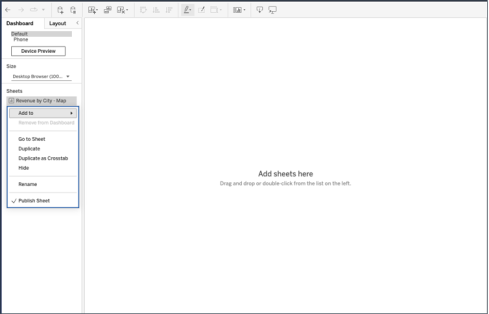
Step two: Navigate to Add to using the arrow keys and press Enter.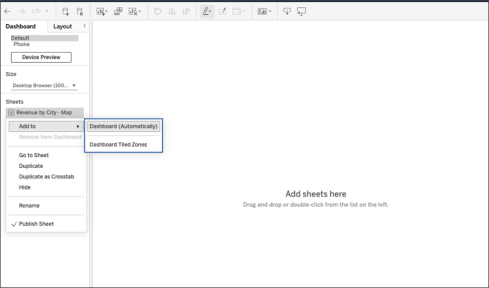
Step three: Select a target placement such as Dashboard (Automatically) with the arrow keys, then press Enter.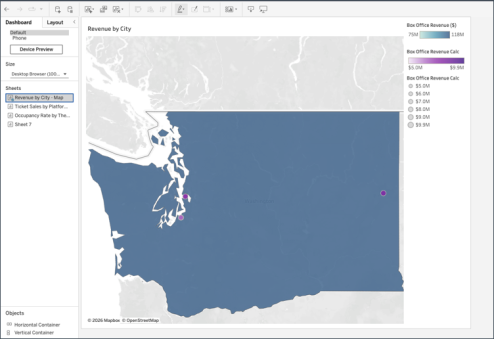
Tableau automatically adds the worksheet to the dashboard, dropping it at the most logical location.