
Dynamic Colour Ranges
With dynamic colour ranges, you can link colour ranges to a parameter's value, enabling you to visualise data trends more effectively. By using parameter actions, you can dynamically update colour ranges based on selections or mark hovers, and you can link the start, centre and end points of the colour range to a parameter. This not only allows for customisation but also helps to ignore outlier data that might skew the colour palette. You can also synchronise range values across visualisations on a dashboard, leading to faster insights.
Use supported field and colour palette types
You can use a dynamic colour range with continuous fields, typically measures. They can be applied to quantitative colour palettes in Tableau, including sequential and diverging colour palettes.
Sequential colour palettes
Typically, a sequential palette shows a single colour, varying in intensity. You must specify at least the two end colours in the sequential colour range.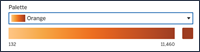
Diverging colour palettes
A diverging colour palette is like two sequential palettes that share a colour in the middle but have different extremes. This type of palette shows two ranges of values using colour intensity (how dark or light) to show the magnitude of the number, and the actual colour (orange or blue) to show which range the number is from. Diverging palettes are most commonly used to show the difference between positive and negative numbers.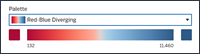
Configure a dynamic colour range based on mark selection
Starting in Tableau 25.3, you can automatically update the colour range based on selected marks, eliminating the need for separate parameter and parameter action workflows.
To configure the Start, Centre or End points of your colour range:
On the Marks card, select Colour, then choose Edit Colours…
From the dropdown menu for the desired range point (Start, Centre or End), select Update on interaction.
Return to your visualisation and click on a mark to set the corresponding value for the chosen range point.
Repeat this process for any other range points you wish to dynamically update.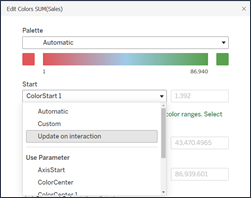
Configure a dynamic colour range with an existing parameter
You can also configure a dynamic colour range on any quantitative, continuous field used in an existing parameter.
After your parameter has been set up, select Colours on the Marks card.
Select Edit Colours…
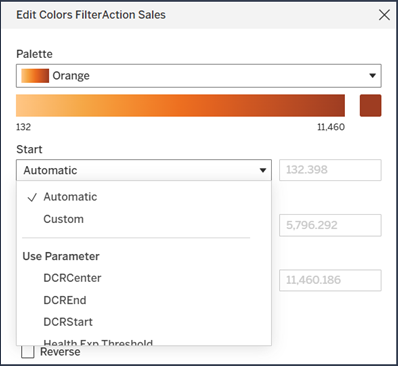
In the Edit Colours dialog box, expand the drop-down next to the start and end point. You can choose Automatic or Custom, or you can use a parameter to set the colour range to update dynamically with parameter actions.
Connect a dynamic colour range to a parameter action
You can type in any value you want in a parameter control to ensure a more efficient colour contrast. For a more interactive solution, you can configure the parameter so that the colour range point is tied to a parameter action.
To do this, create a parameter action with these properties:
Set the Source Sheet to the worksheet or a sheet on a dashboard.
Set the Target Parameter to the parameter that you want to be tied to the dynamic colour range.
Set the Source Field to a continuous measure used to encode colour.
Set the Aggregation:
Use Minimum or First Quartile for the start of the colour range.
Use Maximum or Third Quartile for the end of the colour range.
Make sure that Clearing the selection will is set to Keep current value. This ensures that your colour palette changes persist between interactions.
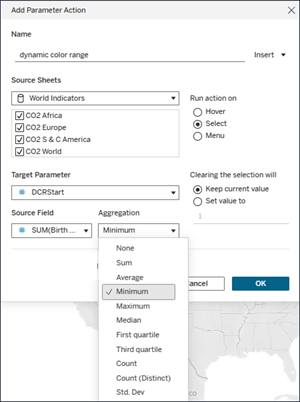
With this parameter action, your colour range dynamically updates as you interact with marks on the viz.
Understand limitations and edge cases
Dynamic colour ranges aren’t updated within Stories.
If you delete the parameter used for the dynamic colour range, then the range value will be set to the most recent parameter value. The next time you edit the colour, you'll receive a message to choose a new parameter for the dynamic colour range.